Samsung’s US Galaxy S-series models are known for powerful hardware and excellent carrier support. However, many users discover a frustrating limitation! US Samsung Galaxy devices are optimized primarily for certification by American carriers. Even though the hardware supports multiple global frequency bands, 5G may remain disabled or restricted when using overseas SIM cards or non-US carriers.
By changing the phone’s network simulation profile to GCF (Global Certification Forum), the device can recognize and activate broader 5G compatibility without modifying CSC firmware or changing the CSC of your Samsung phone.
This restriction is usually tied to carrier certification and CSC behavior rather than hardware limitations. Fortunately, Samsung’s hidden Service Mode provides a workaround.
In this guide, we will walk through how to unlock global 5G bands on Samsung Galaxy S26 US variants by enabling GCF (Global Certification Forum) configuration through the Service Menu. This method does not require root or CSC flashing and has been verified on the Galaxy S26 Ultra running One UI 8.5.
Tested Device: Galaxy S26 Ultra (SM-S948U1)
Software: One UI 8.5
Method: Service Menu + GCF Simulation
Important Disclaimer
This guide involves accessing Samsung’s Service Mode and modifying network certification settings. While the procedure does not require root and generally does not affect OTA updates, proceed carefully and at your own risk.
Incorrect changes inside the Service Menu can impact network behavior or carrier functionality.
Don’t Miss: 22 Effective Battery Saving Tips for Samsung One UI 8+
Prerequisites
- Samsung Galaxy S26 US variant (U / U1 models)
- Windows PC
- USB cable
- USB Debugging enabled
- SamFW Tool installed
Steps to Unlock Global 5G Bands on Galaxy S26
Enable USB Debugging
Before accessing Service Mode, Developer Options, and USB Debugging must be enabled.
- Open Settings >About Phone > Software Information, tap Build Number seven times, and enter your PIN when prompted. Then return to device Settings, open Developer Options, and enable USB Debugging
Your phone is now ready to communicate with the PC.
Unlock Samsung Secret Codes Using SamFW Tool
Samsung restricts certain Service Mode codes on US devices. The first task is unlocking these hidden menus.
- Download and install the SamFW Tool on your PC
- Connect the Galaxy S26 to the PC via USB
- Launch SamFW Tool
- Open the MTP tab
- Click Enable Secret Code for Verizon
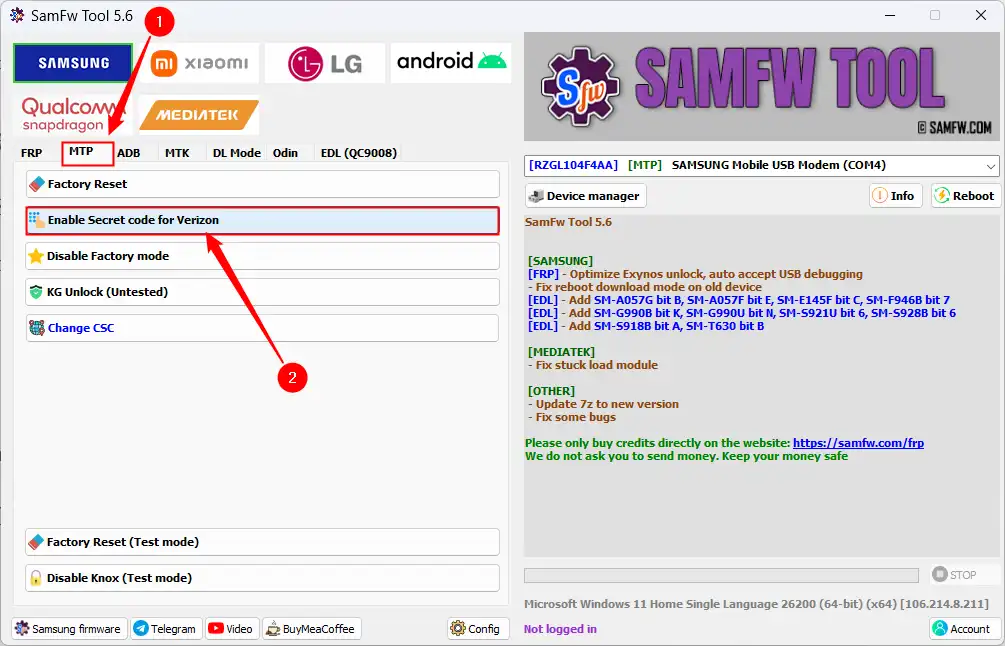
Important: Despite its name, this option works on all US CSC variants, not only Verizon devices.
If SamFW Gets Stuck on “Waiting for DIAG”
This is common and easy to fix.
- Dial:
*#0808#
- Select:
DM + MODEM + ADB
- Press OK
The tool should continue processing.
If SamFW Gets Stuck on “Disabling DIAG”
Repeat the process and switch USB mode back.
- Dial:
*#0808#
- Select:
MTP + ADB
- Press OK
SamFW should complete successfully and confirm that secret codes have been enabled.
Verify Service Menu Access
Before modifying 5G settings, verify that the Service Menu is accessible.
Dial the following Samsung secret code:
*#27663368378#*
If the Service Menu opens, you are ready for the next stage.
Unlock Global 5G Bands via GCF Simulation
This is the core of the process.
Open the Service Menu and navigate through the following path:
[2] UE SETTING & INFO →
[1] SETTING →
[1] PROTOCOL →
[2] NAS →
[A] NAS SIMULATION TEST →
[A] IMEI PRECONFIG SET
You will now reach the configuration screen where NET1 and NET2 values can be changed.
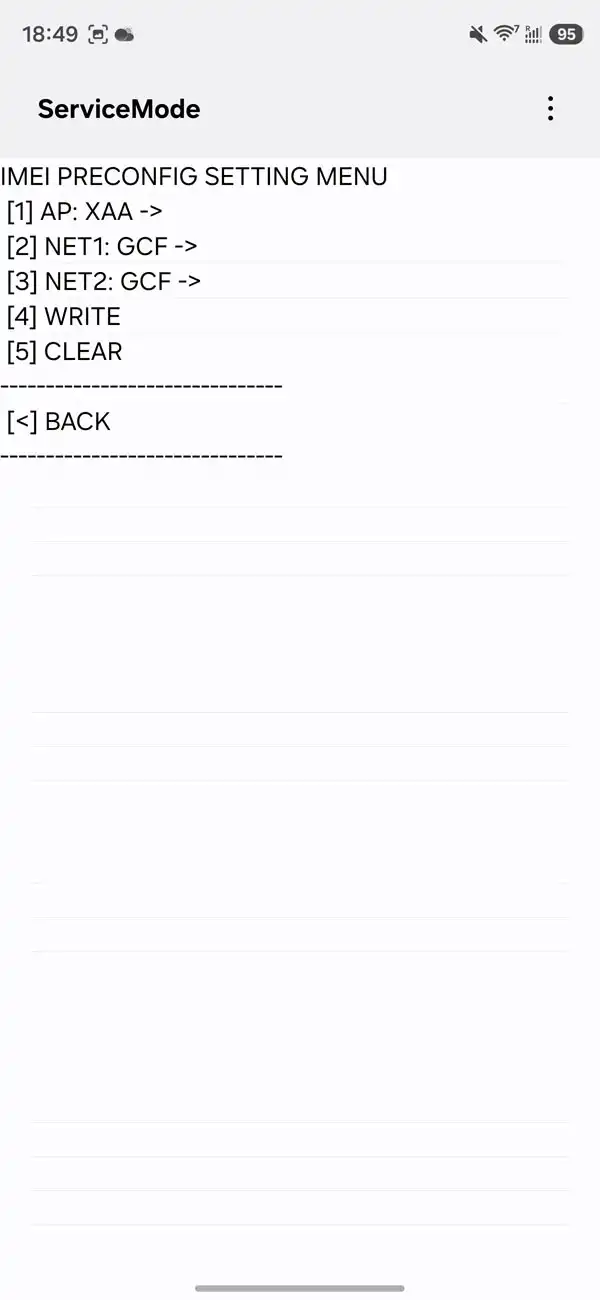
Modify NET1 and NET2 to GCF
Configure NET1
- Select [2] NET1
- Tap the three-dot menu in the top-right corner
- Select Key Input
- Enter: 716770
- Press OK
- Go back
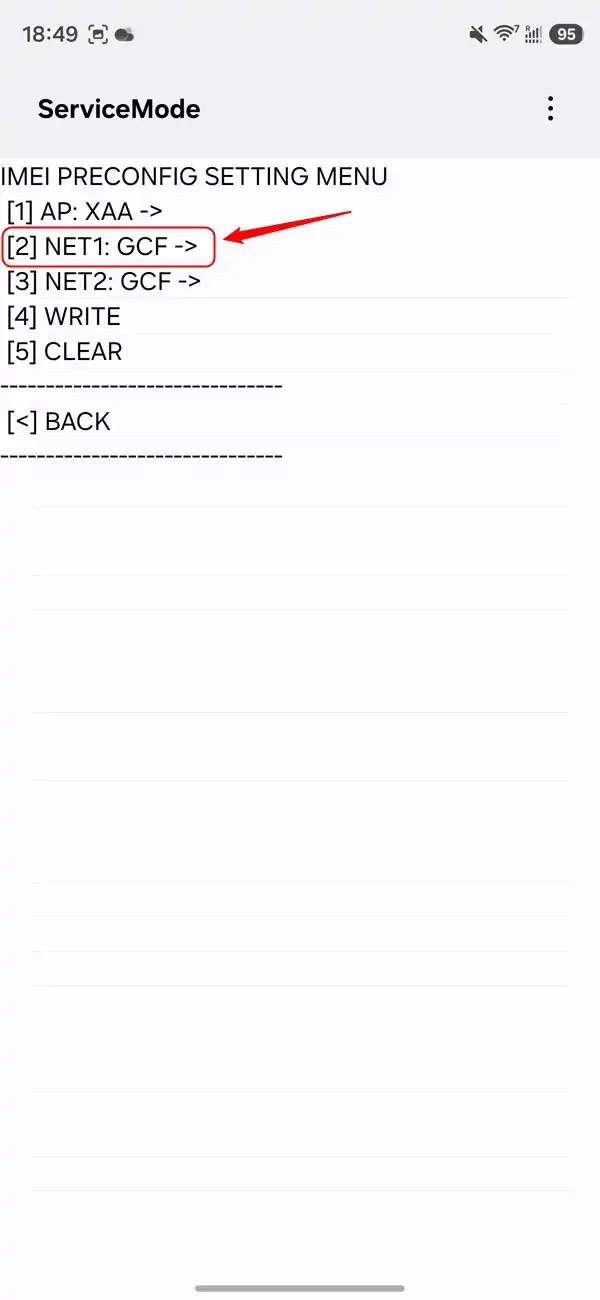
Configure NET2
Repeat the same procedure.
- Select [3] NET2
- Open three dots → Key Input
- Enter: 716770
- Press OK
- Go back
Write Changes and Reboot
Once both values are modified:
- Select [4] WRITE
- Wait approximately 5 seconds
- Manually reboot the phone
The new configuration should activate after reboot.
How to Prevent Settings from Reverting
Some users report that the modification may stop working after SIM swaps or CSC changes.
To reduce this possibility:
- Open SamFW Tool
- Go to the ADB tab
- Enable: Block Change CSC When Change SIM
This prevents Samsung from automatically changing CSC configuration when different SIM cards are inserted.
The Galaxy S26 hardware is fully capable of supporting modern global networks, but software restrictions can prevent users from accessing that capability outside the United States. By using Samsung’s Service Menu and enabling GCF simulation, it is possible to unlock global 5G functionality without permanently modifying firmware or sacrificing OTA updates.
If you own a US Galaxy S26 variant and frequently travel or use international carriers, this method can dramatically improve your network experience.
Read Next: 6 Ways to Check the Manufacturing Date of Samsung Devices