Is your Android phone constantly showing “Storage space running out”? Before buying a microSD card or deleting your favorite photos, take a closer look at what’s actually consuming your storage.
Over time, Android phones accumulate cached files, downloads, duplicate media, unused apps, and other digital clutter. The good news is that you can safely remove quite a lot of it without affecting your phone.
Here are 12 things you can safely delete to free up storage on Android.
1. App Cache
Cached files help apps load content faster, but they can grow surprisingly large.
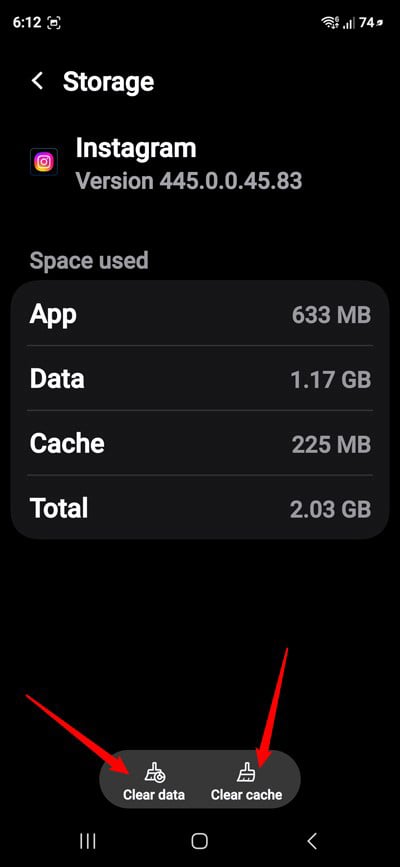
Go to Settings > Apps > See all apps, select a large app, tap Storage & cache, and choose Clear cache. Don’t confuse this with Clear storage/data, which can remove app settings and locally stored information.
2. Downloads You No Longer Need
Your Downloads folder can become a digital dumping ground for PDFs, ZIP files, APKs, images, and documents. Open Files by Google or your phone’s file manager and check the Downloads folder. Delete files you no longer need.
Don’t Miss: 10 Gboard Tips to Boost Your Productivity
3. Images and Large Videos
Videos can consume several gigabytes without you realizing it. Open your gallery and sort or review videos by size. Delete unwanted screen recordings, forwarded videos, and old clips. Also check your screenshots and screen recording folders and delete obsolete images and recordings.
Remember to back up anything important first.
4. WhatsApp Media
WhatsApp can quietly consume a large amount of storage space through photos, videos, GIFs, and documents.
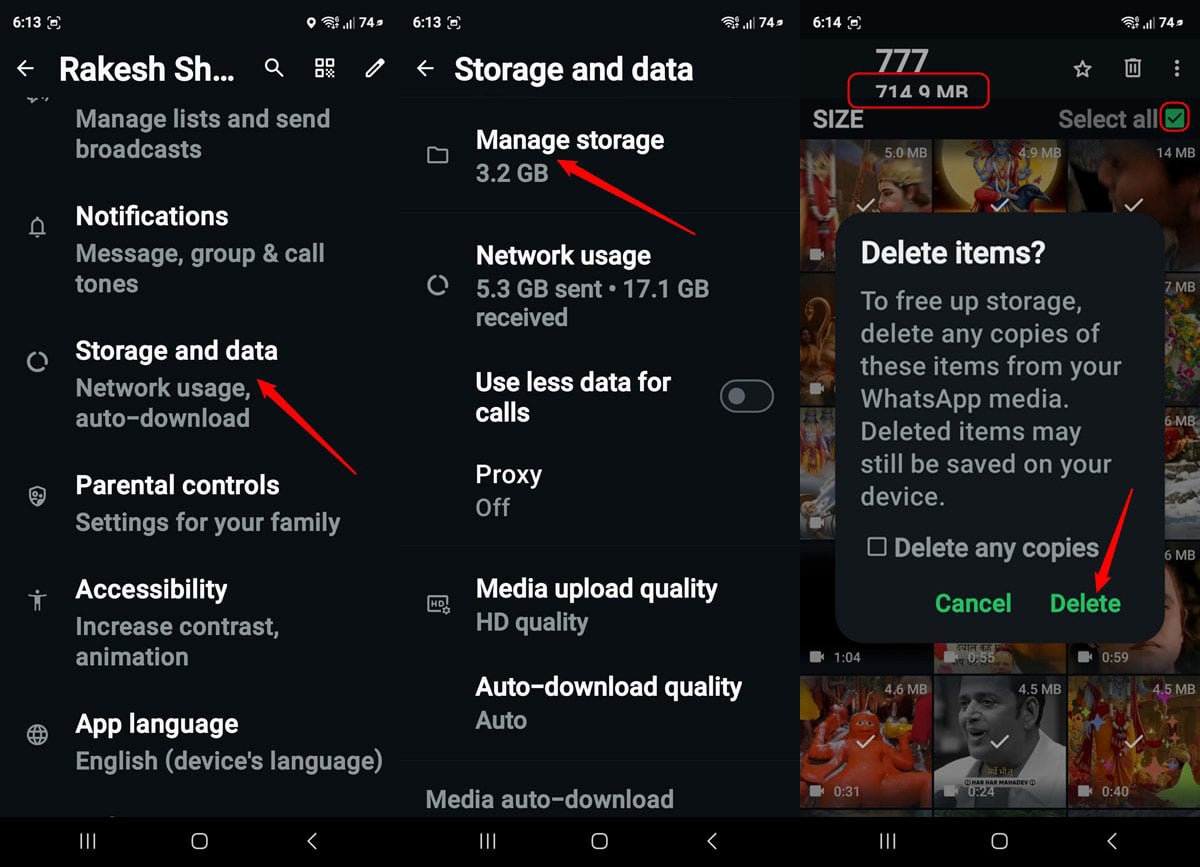
Open WhatsApp > Settings > Storage and data > Manage storage and review large files and frequently forwarded media.
You can delete unnecessary items without deleting your chats.
5. Telegram Media
Telegram can also accumulate cached photos and videos.
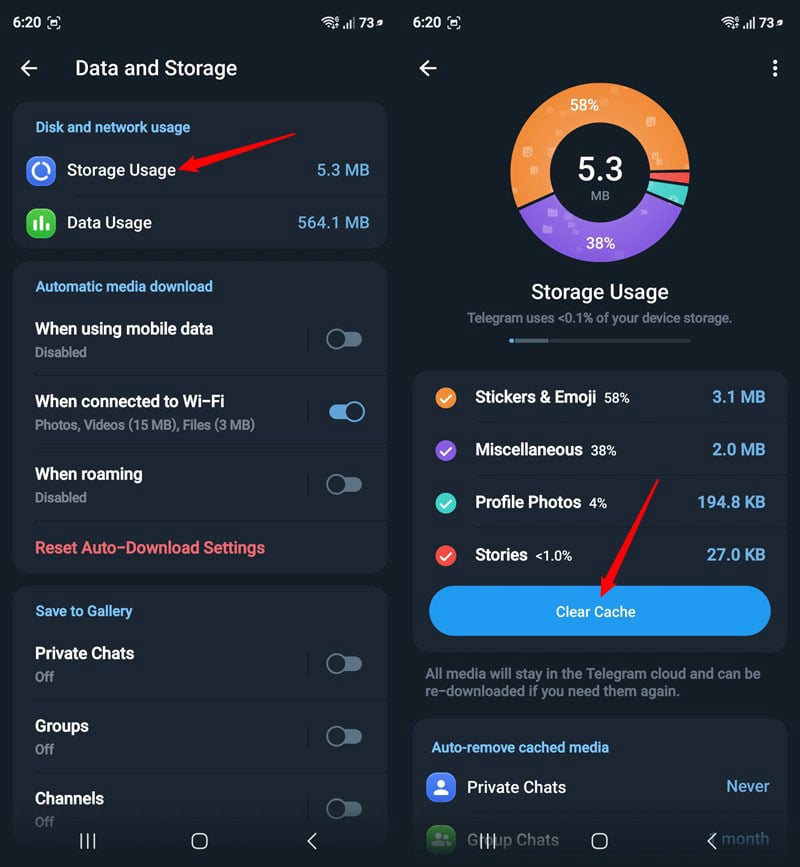
Go to Telegram > Settings > Data and Storage > Storage Usage and clear cached media.
Because Telegram can download cloud content again when needed, clearing its cache can recover considerable space.
6. Unused Apps
Look through your installed apps and remove those you haven’t used for months.
On many Android phones, you can use Settings > Apps to identify apps consuming significant storage.
If you can reinstall an app whenever you need it, there’s little reason to keep it occupying storage indefinitely.
Must Read: 20 Most Useful Android Shortcuts for Doing Things Faster
7. Offline Maps and YouTube Downloads
If you’ve downloaded maps for offline navigation, they can take up substantial storage space.
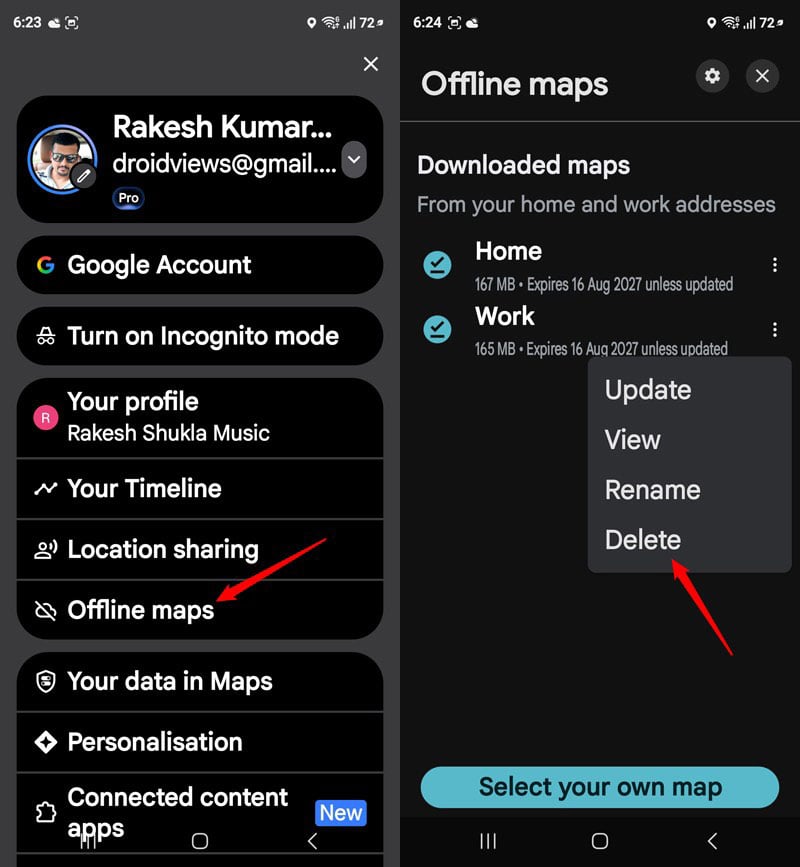
In Google Maps, open your profile picture and select Offline maps. Delete maps covering areas you no longer need.
You can always download them again later. Similarly, open YouTube and check Downloads. Remove videos you have already watched or no longer need offline.
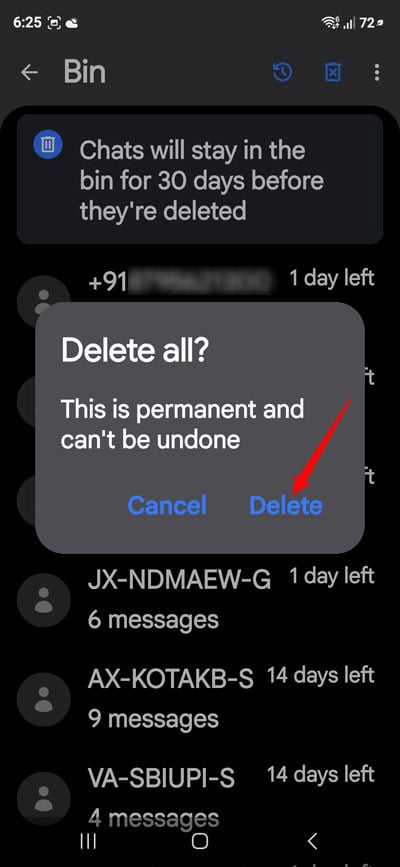
8. Trash and Recently Deleted Files
Deleting a file doesn’t always immediately free the storage it occupied.
Gallery apps, Google Photos, Messages, and file managers may keep deleted items in a Trash or Recently Deleted folder for a period of time.
If you’re certain you don’t need them, empty these folders to reclaim the space.
What You Should NOT Delete
Be careful when exploring Android’s internal storage.
Avoid manually deleting folders such as Android/data, Android/obb, or system folders, or unfamiliar files, simply because they appear large.
You could break an app or lose important data. Also avoid deleting app data unless you understand what it contains. Clearing an app’s cache is generally much safer than clearing its storage/data.
The Easiest Way to Free Up Android Storage
You don’t need to clean your phone every week.
Start with the biggest space hogs: videos, WhatsApp/Telegram media, downloads, unused apps, and cached data.
On supported Android phones, open Settings > Storage to see what’s consuming the most space. Deal with the largest categories first, rather than deleting files at random.
And before deleting anything irreplaceable, make sure it is backed up. A few minutes of storage cleanup can often free several gigabytes without removing anything you actually need.
Read Next: How to Fix Lag and Latency in Android Auto