If you use a Samsung Galaxy phone running One UI 9 for demanding games or Android emulation, you may be able to squeeze out better sustained performance by enabling additional controls that aren’t readily exposed in the standard Game Booster interface.
A community-discovered method combines Game Booster+ 2.0.00.29 with Samsung’s Good Guardians utility suite and its Thermal Guardian module. The combination gives you additional control over how Samsung identifies apps as games and how aggressively the phone manages thermal performance.
The method is particularly interesting for emulators because an emulator may not automatically receive the same game-related optimizations as a conventional Android game. Game Booster+ includes a Change Game Category function that can classify a non-game application as a game, while its GPU settings can expose additional performance-related controls. Version 2.0.00.29 also includes an Aim Assist menu. Game Booster+ 2.0.00.29 is a Samsung-signed release and is listed for Android 16+ devices.
What You Need
Before starting, make sure you have the following:
- Samsung Galaxy phone running One UI 9.
- Game Booster+ 2.0.00.29 (APK).
- Samsung Good Guardians (APK).
- Thermal Guardian installed through Good Guardians.
- A demanding Android game or emulator to test the performance difference.
Don’t Miss: One UI Optimization Tips and Tricks – Ultimate Guide
How to Improve Gaming and Emulation Performance on One UI 9
Follow the steps below to set up Game Booster+ 2.0.00.29, Samsung Good Guardians, and Thermal Guardian on your Galaxy device:
- Download and install Game Booster+ 2.0.00.29. Allow it the required permissions.
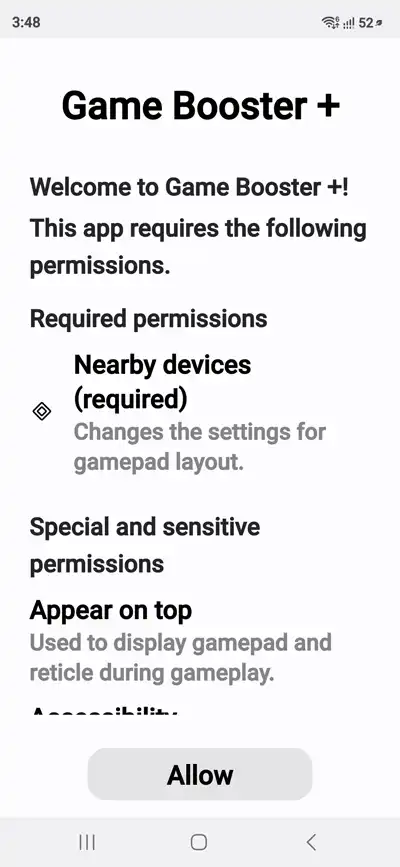
- Open Game Booster+. Depending on your Galaxy model and One UI build, the app may initially show an unsupported-device message or may not display all of its options. Don’t worry if this happens; continue with the following steps.
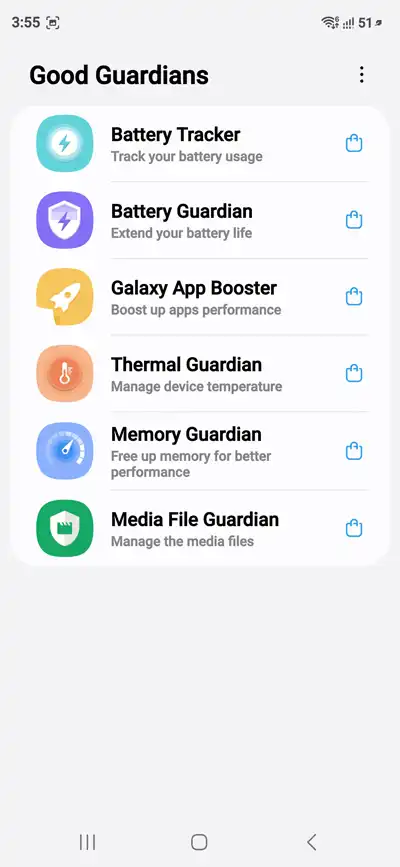
- Install Samsung Good Guardians. The app provides several system-management utilities, including the Thermal Guardian module. Availability and menu names may vary depending on your device, region, and software version.
- Open Good Guardians, find Thermal Guardian, install the module, and launch it. Thermal Guardian lets you adjust the temperature threshold at which Samsung’s thermal management begins restricting performance.
- Configure Game Booster+ for your emulator. Once Game Booster+ is working, add or locate the emulator you want to optimize. Use the Change Game Category option to classify the emulator as a game. This is particularly useful because Samsung may not automatically treat an emulator like a conventional Android game.
- Fine-tune the Game Booster+ GPU settings. Depending on your device, Game Booster+ may provide additional GPU options, including Vulkan rotation optimization and texture quality. Experiment with these settings to find the right balance between visual quality and performance for your emulator.
- Adjust the Thermal Guardian limit gradually. Return to Good Guardians → Thermal Guardian and increase the thermal threshold slightly rather than immediately setting it to the maximum. Run your emulator for an extended period and monitor the device temperature, frame rate, and battery consumption.
- Monitor sustained performance. A higher thermal threshold may allow the CPU and GPU to maintain higher clock speeds for longer, but it can also increase heat and battery drain. If your phone becomes excessively hot or performance starts dropping because of thermal throttling, lower the threshold and allow the device to cool down.
Best Way to Test the Difference
Please don’t judge the modification based on a brief peak in FPS. Emulation performance is often limited by sustained thermal behavior.
Run the same game or emulator for 15–30 minutes before and after applying the changes. Compare:
- Average FPS
- 1% lows and frame-time stability
- Device temperature
- Battery consumption
- Performance after prolonged gameplay
If performance improves initially but falls sharply once the phone heats up, the device is probably becoming thermally limited. In that situation, a phone cooler may provide a greater benefit than simply increasing the thermal threshold.
Read Next: 22 Effective Battery Saving Tips for Samsung One UI
Via: Reddit