Shizuku is one of the most useful tools for Android power users. It allows compatible apps to access many Android APIs with ADB-level privileges without requiring root. Apps such as SystemUI Tuner can use Shizuku to perform advanced system modifications that would otherwise require ADB or root.
However, the standard Shizuku setup on non-rooted phones has one annoyance: Developer Options and Wireless Debugging usually need to be enabled to start Shizuku.
Fortunately, there is a workaround involving SystemUI Tuner. After completing the initial setup, you can use SystemUI Tuner to control the Wireless ADB settings and then turn off the main Developer Options switch.
This guide explains the complete procedure, including the initial setup, granting SystemUI Tuner the required permission, enabling Wireless ADB through SystemUI Tuner, making the setting persistent, and starting Shizuku after Developer Options has been disabled.
Important: This method does not eliminate Android’s underlying ADB requirements. You still need to perform the initial setup with Developer Options and Wireless Debugging enabled. The trick is that after the setup, SystemUI Tuner can control the relevant ADB setting. Then, you can turn Developer Options off afterward.
Don’t Miss: 15 Shizuku Tricks Most Android Users Don’t Know
What You Need
Before starting, make sure you have the following:
- An Android phone running Android 11 or newer.
- Shizuku installed on the phone.
- SystemUI Tuner installed on the phone.
- Wi-Fi connectivity.
- Developer Options available during the initial setup.
- Wireless Debugging supported by your Android version.
Shizuku officially supports starting through Wireless Debugging on Android 11 and newer. This method doesn’t require a computer, but Android normally requires Developer Options and Wireless Debugging to be enabled.
How This Method Works
It helps to understand what is actually happening before changing anything.
Normally, the process looks like this:
Developer Options
       ↓
Wireless Debugging
       ↓
ADB
       ↓
Shizuku
       ↓
Apps using Shizuku
Android normally places Wireless Debugging inside Developer Options. Therefore, turning off Developer Options also normally disables the ADB debugging functionality that Shizuku needs.
SystemUI Tuner exposes hidden Android settings and can modify certain settings that are normally inaccessible to ordinary applications. It can expose hidden options and provides ADB commands for granting permissions such as WRITE_SECURE_SETTINGS.
The workaround essentially changes the process to:
SystemUI Tuner
       ↓
ADB / Wireless ADB setting
       ↓
Shizuku
       ↓
Shizuku-enabled apps
This is why the method is particularly useful for people who want to keep Developer Options disabled when they are not actively developing or debugging their phone.
Steps to Run Shizuku Without Developer Options
- First, install the latest version of Shizuku from the Play Store or GitHub Release page.
- Enable Developer Options on your device via Settings >About Phone > Software Information > Build Number.

- Open Developer Options and enable Wireless Debugging.

- Now, set up Shizuku via Wireless Debugging using the steps provided in our tutorial. Once Shizuku is up and running, close the app.
- Install SystemUI Tuner by Zachary Wander.
- SystemUI Tuner needs access to Android’s protected settings to modify certain hidden options. To do that, execute the following ADB Shell command in the Terminal on your PC or using aShell app on your phone to grant the required Android permission:
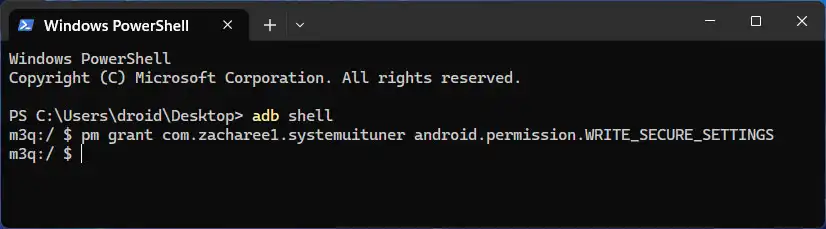
adb shell
pm grant com.zacharee1.systemuituner android.permission.WRITE_SECURE_SETTINGS
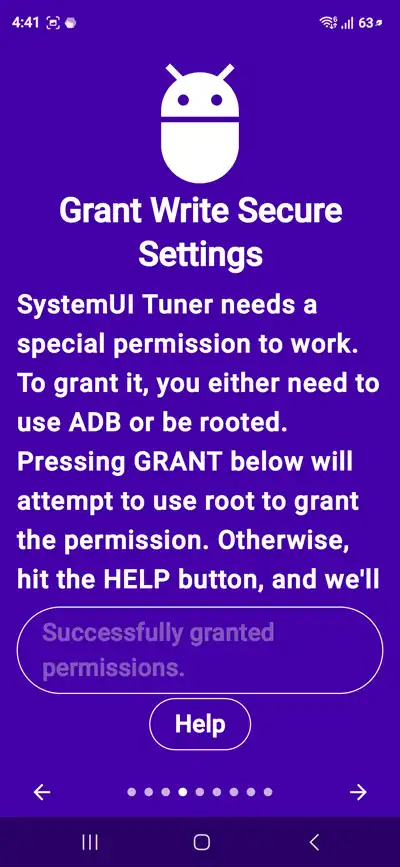
- After the permission has been granted, SystemUI Tuner can access the protected setting required for the workaround.
- Launch SystemUI Tuner and complete the initial setup by accepting the terms and granting the required permissions.
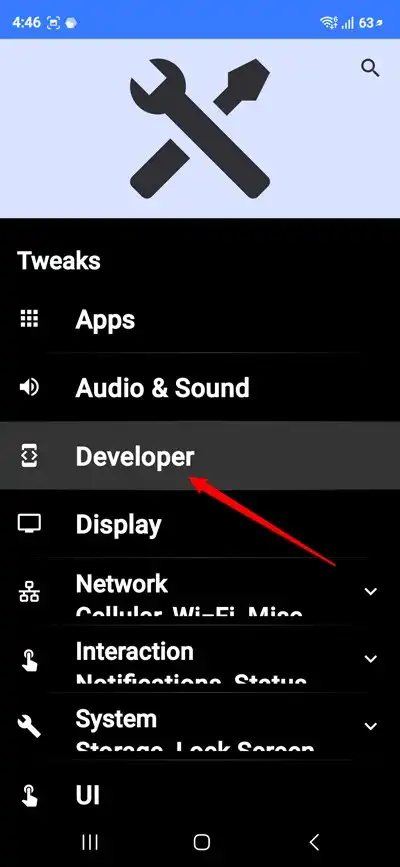
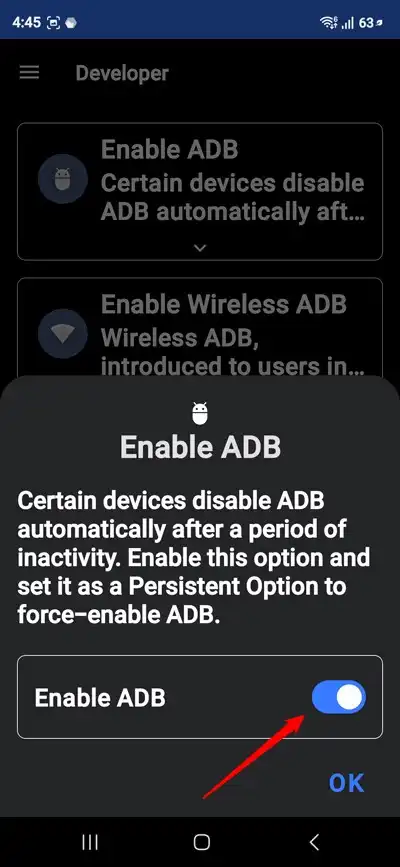
- Inside SystemUI Tuner, open the Developer section and enable the following.
- Enable ADB
- Enable Wireless ADB
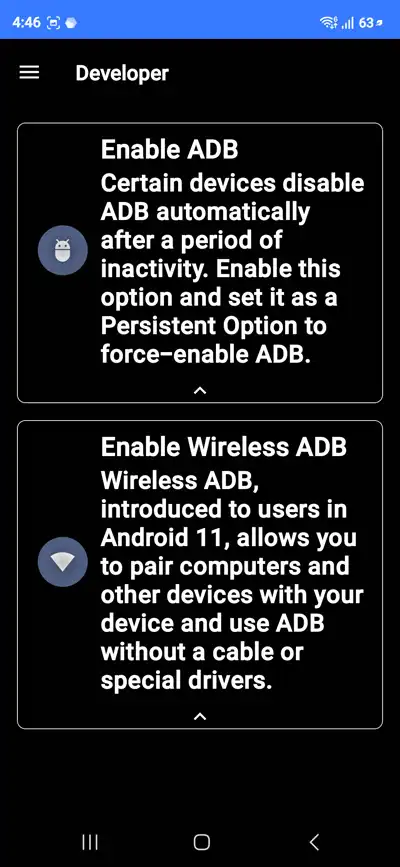
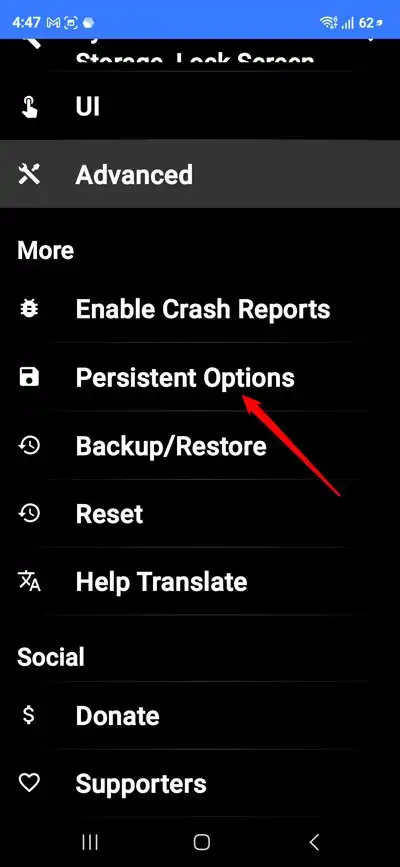
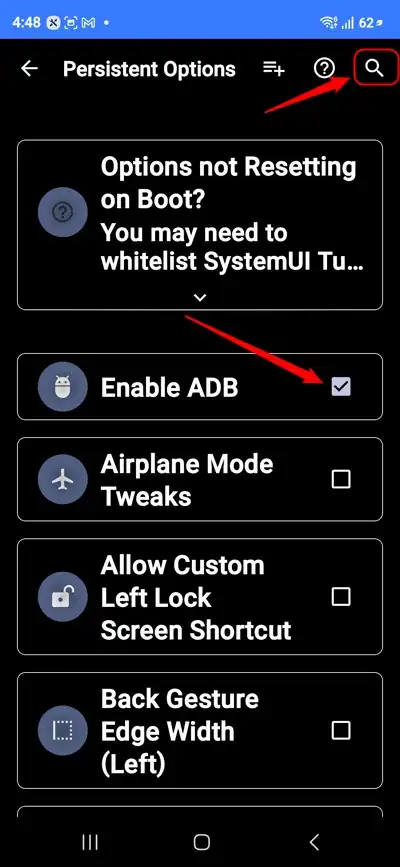
- Now, open Persistent Options in the app, look for the ADB-related option, and enable Enable ADB. The purpose of Persistent Options is to tell SystemUI Tuner to keep applying the selected setting instead of treating it as a one-time modification.
- Now return to Shizuku and make sure:
- Wi-Fi is connected.
- Wireless ADB is enabled through SystemUI Tuner.
- SystemUI Tuner has the required permission.
- The phone has already been paired with Shizuku.
- Tap Start in Shizuku. Shizuku should connect to the local Wireless ADB service and start its privileged service. Once Shizuku shows Running, you can test it by opening any application that supports Shizuku.
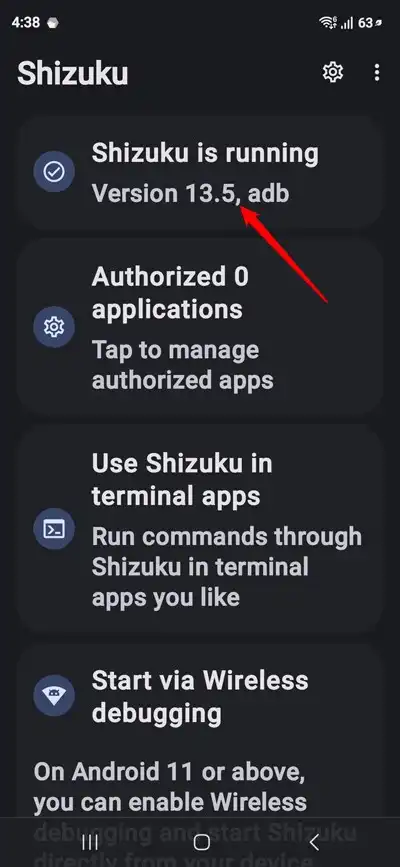
- Now comes the main trick. Open the phone’s normal Settings application and turn off the main Developer Options switch. Do not uninstall SystemUI Tuner or revoke its permission.
Now that Shizuku is up and running, do not forget to try these amazing Shizuku apps and mods.
What Happens After a Reboot?
This is where things become more complicated.
Under the normal Shizuku Wireless Debugging method, Android’s restrictions mean that the service generally needs to be started again after a reboot. Shizuku’s official documentation explicitly states that the Wireless Debugging startup steps need to be performed again after each reboot.
SystemUI Tuner helps automate part of this process by restoring the Wireless ADB setting, but it does not guarantee that Shizuku will automatically start after every reboot on every device.
How to Start Shizuku After Reboot
After rebooting, try the following:
- Connect to Wi-Fi (important).
- Open SystemUI Tuner.
- Verify that Wireless ADB is enabled.
- Open Shizuku.
- Tap Start.
- Wait for the status to change to Running.
If Shizuku starts successfully, you can continue using your Shizuku-enabled apps without turning the main Developer Options switch back on.
How to Revoke SystemUI Tuner’s Permission
If you want to undo the setup, you can revoke the protected permission using ADB:
adb shell pm revoke com.zacharee1.systemuituner android.permission.WRITE_SECURE_SETTINGS
Alternatively, uninstalling the application removes its application-level permissions.
Keep in mind that settings changed by SystemUI Tuner may not automatically revert simply because the app has been uninstalled. The developer specifically warns users that SystemUI Tuner changes may need to be manually reversed.