Until now, Samloader was the only cross-platform Samsung firmware downloader available for Windows, macOS, Linux, and Android. Being a Python-based script, Samloader is difficult to set up and use. If you are looking for a cross-platform Samsung firmware downloading tool with a GUI, Bifrost is the best option. It works efficiently on Windows, Linux, macOS, and Android. This tutorial explains the steps to use Bifrost, one of the best Samsung firmware downloaders.
Bifrost is based on Samloader, but instead of Python, it uses Kotlin. The tool features a user-friendly interface and only requires your device’s model number and CSC code to search for the latest firmware update and download it from Samsung FUS.
As mentioned earlier, Bifrost is far better than Samloader, which operates via a command-line interface on macOS, Linux, Windows, and Android. Even if you are a Windows user, you will find Bifrost easier to use than Frija. While Samloader requires Python libraries and Frija requires the .NET Framework to function, Bifrost has no such dependencies.
Bifrost is a portable utility that runs out of the box and supports high-speed firmware downloads. Interestingly, the tool gets its name from the Trojan Horse malware family, which is why some antivirus programs might flag it as a false positive when opening it. You can safely ignore such warnings.
Download Bifrost (Windows, macOS & Linux)
Bifrost is available for all major operating systems, including Windows, Linux, macOS, and Android. The latest version of the app is 1.20.1, and you can always update it from More > Updates.
Bifrost 2.1.3 for Windows
bifrost-2.1.3-windows-aarch64.zip | 92.7 MB
bifrost-1.2.3-windows-amd64.zip | 95.4 MB
Bifrost 2.1.3 for macOS
bifrost-2.1.3-mac-aarch64.zip | 96.8 MB
Bifrost 2.1.3 for Linux
bifrost-2.1.3-linux-aarch64.tar.gz | 98.2 MB
bifrost-1.2.3-linux-amd64.tar.gz | 101 MB
Bifrost 2.1.2 for Android
bifrost_android_2.1.2.apk | 20.4 MB
Follow our tutorial to download Samsung firmware using Bifrost on Android devices.
Using Bifrost to Download Samsung Firmware
Having tested Samsung firmware downloaders like Samloader, Frija, SamFirm, and Fuddy, one can easily conclude that Bifrost is the best. The in-app update feature ensures you always have the latest version. To download the firmware, you only need information like the CSC, model number, and, in some cases, the IMEI number of your Samsung Galaxy phone or tablet.
Follow the steps below to learn how to use Bifrost.
- Extract the bifrost-2.1.0-windows-amd64.zip using a Zip archiver.
- Open the extracted folder and navigate to the Bin subfolder.
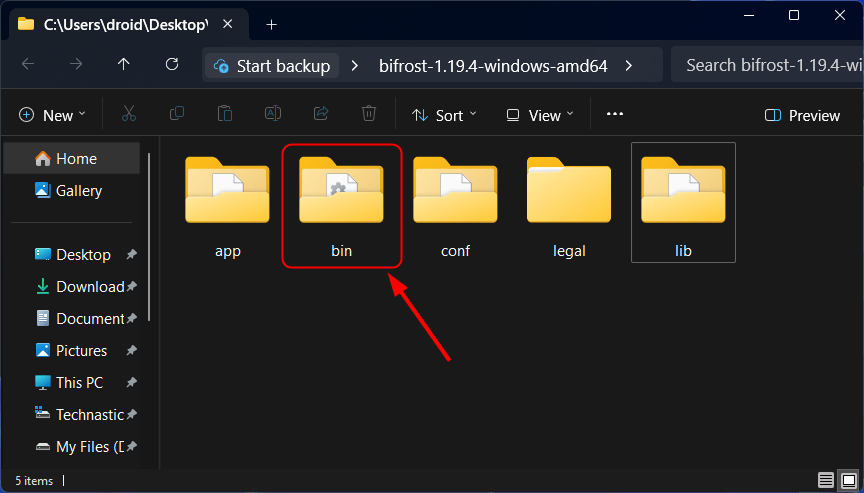
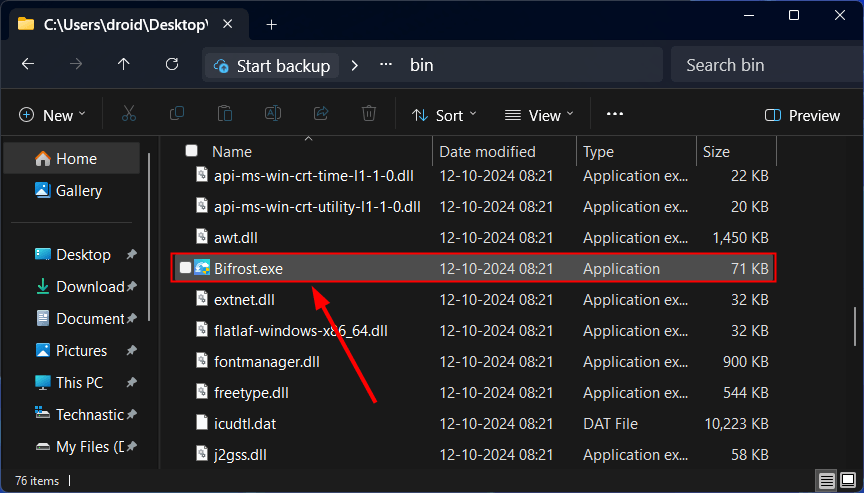
- Look for Bifrost.exe and double-click to launch the program.
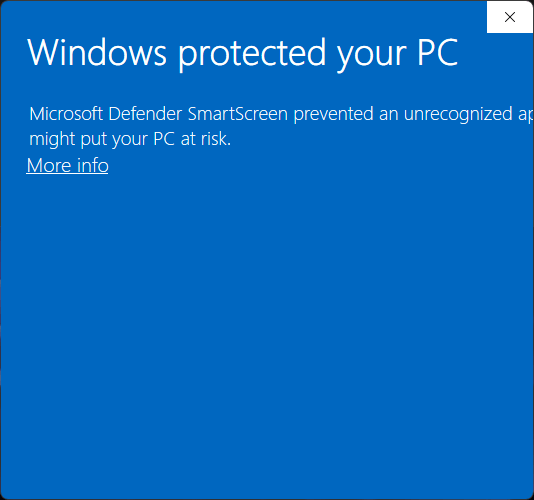
- Windows Defender or your Antivirus app might stop Bifrost from opening.
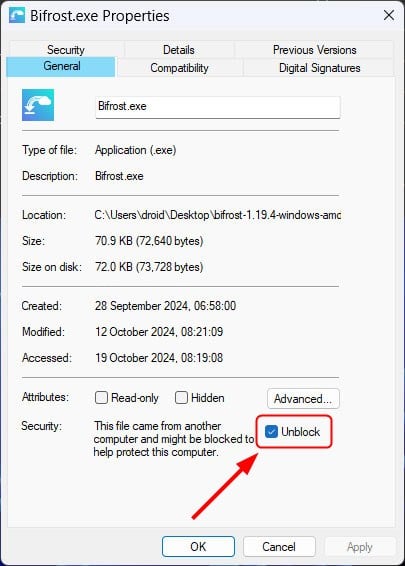
- If you get a false positive warning, right-click the Bifrost.exe and select Properties from the context menu
- Select the Unblock option, click OK, and relaunch Bifrost.
- Open Settings > About phone on your Galaxy device to find its model number and enter it in the Model field in Bifrost.
- Find your Samsung device’s CSC and type it in the CSC field.
- Leave the Firmware and IMEI/Serial boxes empty.
- Finally, click the Check for Updates button.
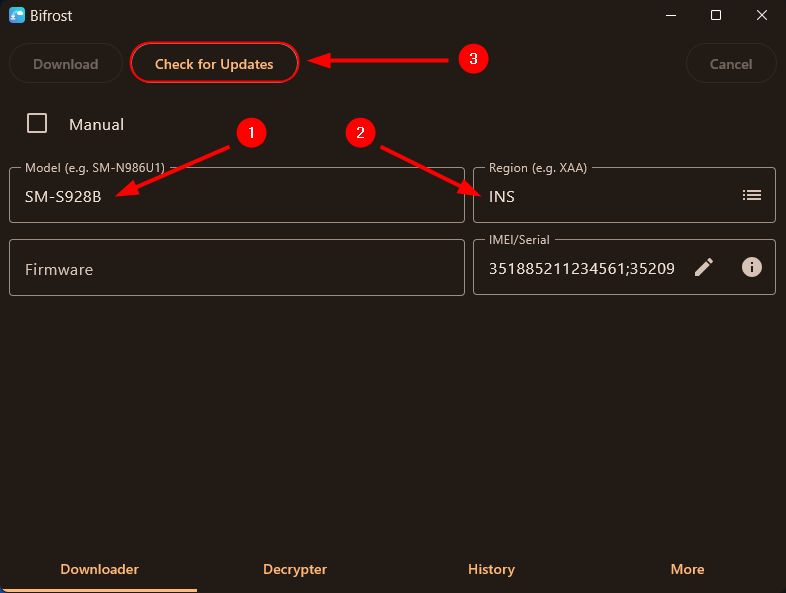
- Bifrost will fetch the latest firmware for the given model number and CSC. You can check the firmware version in the Firmware field and click Changelog to find the new features in the update.
- If you get the CRC check failed error, click the Edit icon in the IMEI/Serial box, delete all the IMEI numbers listed there, and enter the IMEI of your Samsung phone.
- Anyway, click the Download button and choose the location where you want to save the firmware file.
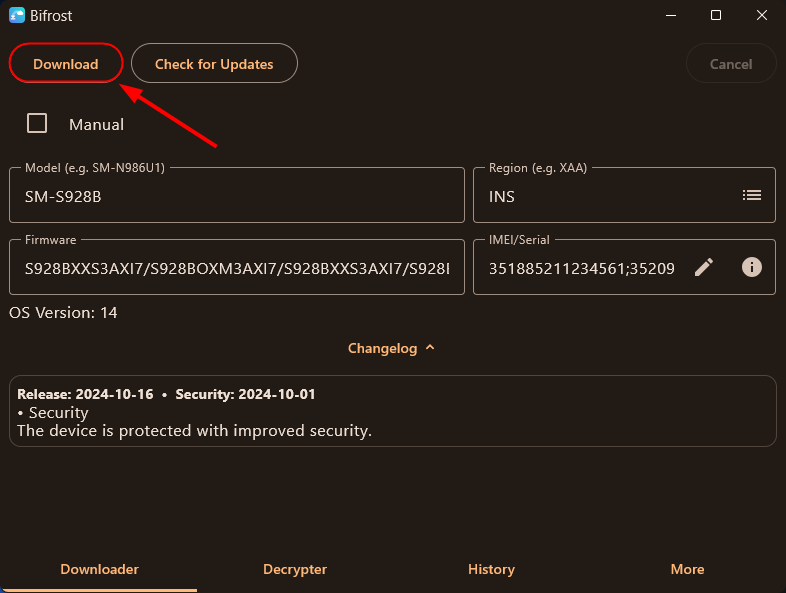
- Depending on your internet speed, the firmware might take some time to download.
- When the firmware is downloaded, Bifrost will automatically decrypt it so you have the ‘firmware.zip’ file.
- Extract the zip file to get the 5 binaries: AP, BL, CP, CSC, and Home CSC.
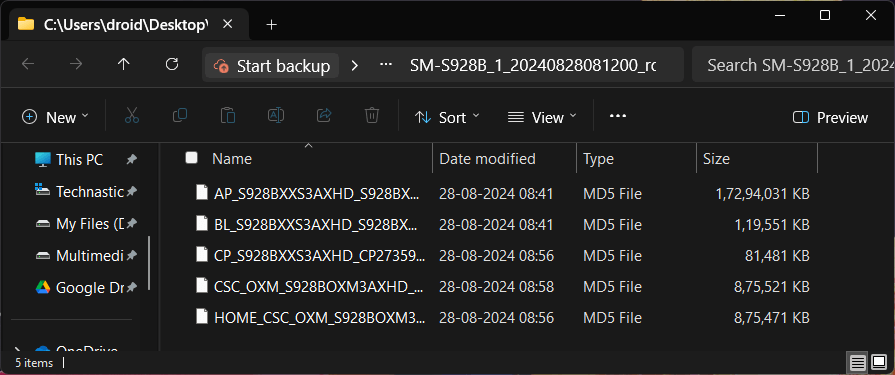
Now, download the latest Odin, boot your Samsung device into Download Mode, and flash the firmware.
Source: SamloaderKotlin (GitHub)