ADB and Fastboot are essential tools for Android enthusiasts and developers, but using them usually requires memorizing complex commands. QuickADB simplifies this process by letting you perform major ADB and Fastboot tasks without typing commands manually. With a single click, you can sideload APKs, uninstall bloatware, transfer files, access bootloader or fastboot mode, flash images, and install USB drivers.
Developed by CodeFl0w, QuickADB is a powerful all-in-one tool for both beginners and advanced users. While earlier versions were unstable, the latest release is fast, stable, and packed with features. Compared to tools like Web ADB and ADB AppControl, QuickADB offers broader functionality and a more streamlined experience.
Don’t Miss: ADB Commands to Improve Performance on Android
Download the Latest QuickADB Tool
QuickADB is an all-in-one portable tool for Windows 10/11 that gets ADB and Fastboot-related things done in no time. It has a plain graphical user interface, but its size is over 100MB because it also contains the USB Drivers for all major OEMs. We’ve requested the developer on his XDA thread to release a lite version of the tool and received a positive response from CodeFl0w.
QuickADB V4.0.2 | 70MB
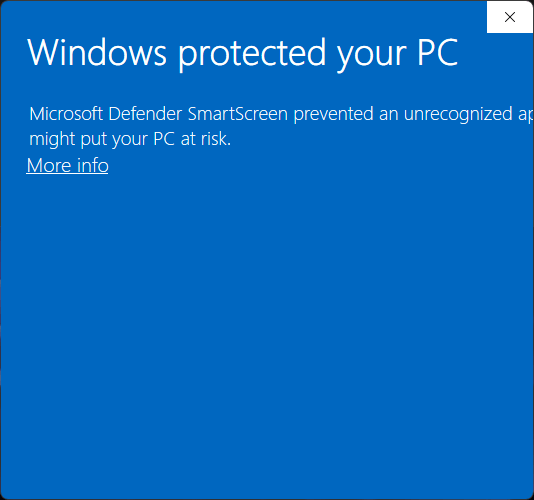
Having downloaded the file, double-click QuickADB_V4.0.2.exe to launch the program. Antiviruses and firewalls like Kaspersky, McAfee, Windows Defender, etc., may flag QuickADB as a Trojan. Since the program is compiled with PyInstaller, it doesn’t have a signature. If you get the following error, please unblock the app from the app’s Properties or turn off your antivirus to bypass the false positive.
Windows protected your PC
Windows Defender SmartScreen prevented an unrecognized app from starting. Running this app might put your PC at risk.
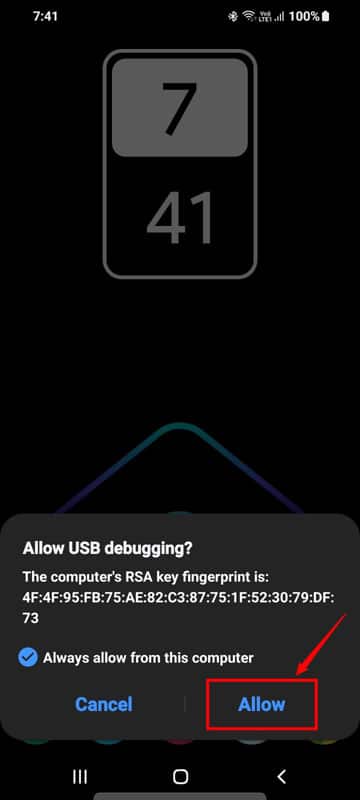
When QuickADB is launched, enable USB Debugging from the Developer Options on your Android phone. Connect your phone to your Windows PC and authorize the ADB connection on the device when prompted.
 That’s it! You’re now ready to use QuickADB.
List of QuickADB Features
QuickADB offers more tasks related to ADB and Fastboot than you would ever use. The developer has categorized all QuickADB features into 5 sections.
- ADB Operations
- Fastboot Operations
- Flashing Operations
- Open Terminal
- Advanced
- Miscellaneous
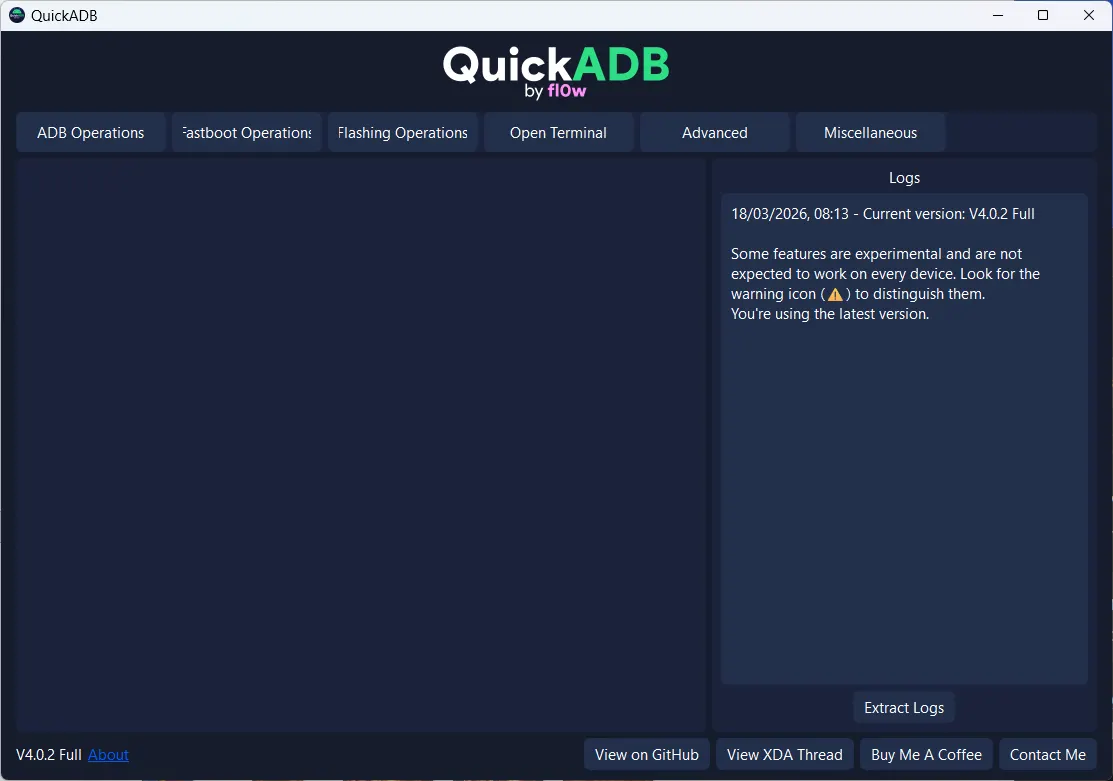
Below, we’ll review all the features of QuickADB that fall into its 5 tabs.
1. ADB Operations
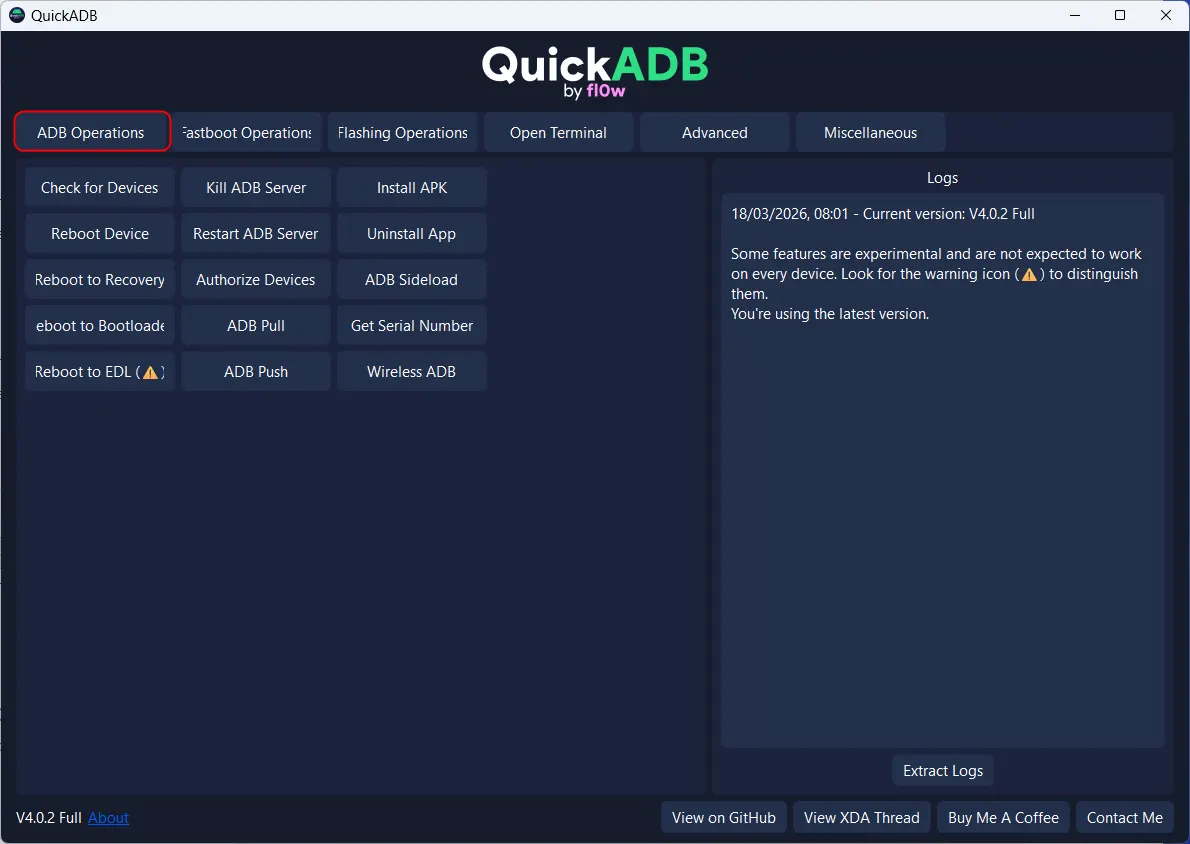
When you click the ADB Operations tab, you’ll have access to the following options:
- Check for Devices: Click this option to check the list of connected ADB devices. It works the same way as the ‘
adb devices‘ command. - Reboot Device: Click this button to restart your Android phone or tablet.
- Reboot to Recovery: Reboots the connected device into the Recovery Mode.
- Reboot to Bootloader: Click to boot your device into the Bootloader Mode or the Download Mode (Samsung devices).
- Reboot to EDL: Boot into the Emergency Download Mode (EDL) on a Qualcomm Android phone.
- Kill ADB Server: If you’re having issues with the ADB connection, killing the ADB server may fix the issue.
- Restart ADB Server: After killing the ADB server, use this option to restart it.
- Authorize Devices: ADB can’t communicate with a connected device unless the PC is authorized to connect to your device. Click this option and tap Allow when requested on your device.
- ADB Pull: Emulates the adb pull command to get files from a connected emulator.
- ADB Push: This lets you push files from the PC to your Android device.
- Install APK: If you need to sideload APK files on your Android phone via your computer.
- Uninstall App: This option lets you uninstall apps on Android devices.
- ADB Sideload: You can use this option to sideload apps and OTA zips to Android devices.
- Get Serial Number: View your device’s serial number with a single click.
- Wireless ADB: Click this button, and enter your phone’s IP address to enjoy wireless ADB over Wi-Fi.
2. Fastboot Operations
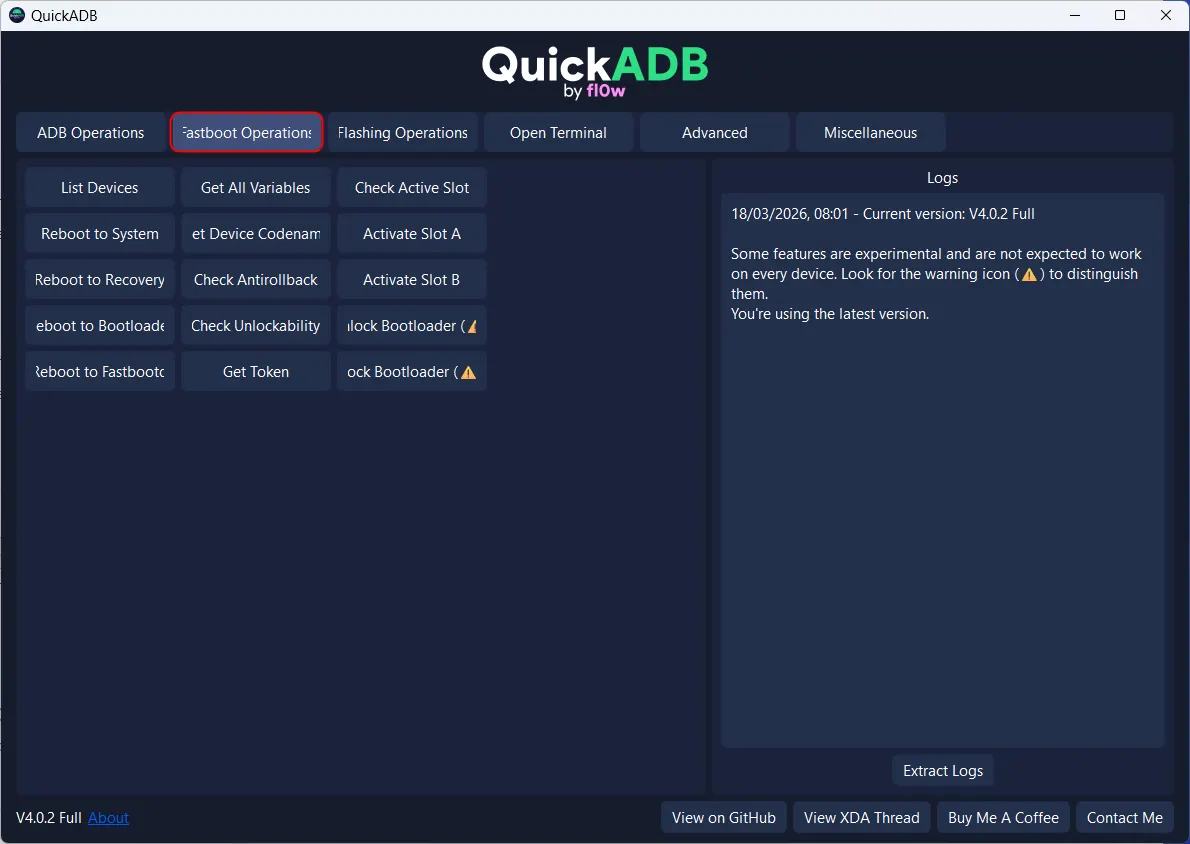
The options under the Fastboot tab only work when your Android device is booted to Fastboot mode and connected to your PC via USB. You can perform the following Fastboot-related tasks with QuickADB.
- List of Fastboot Devices
- Reboot to System
- Reboot to Recovery
- Reboot to Bootloader
- Reboot to Fastbootd
- Get All Variables
- Det Device Codename
- Check Anti-Rollback
- Check Unlocability
- Get Token
- Check Active Slot
- Activate Slot A
- Activate Slot B
- Unlock Bootloader
- Lock Bootloader
3. Flashing Operations
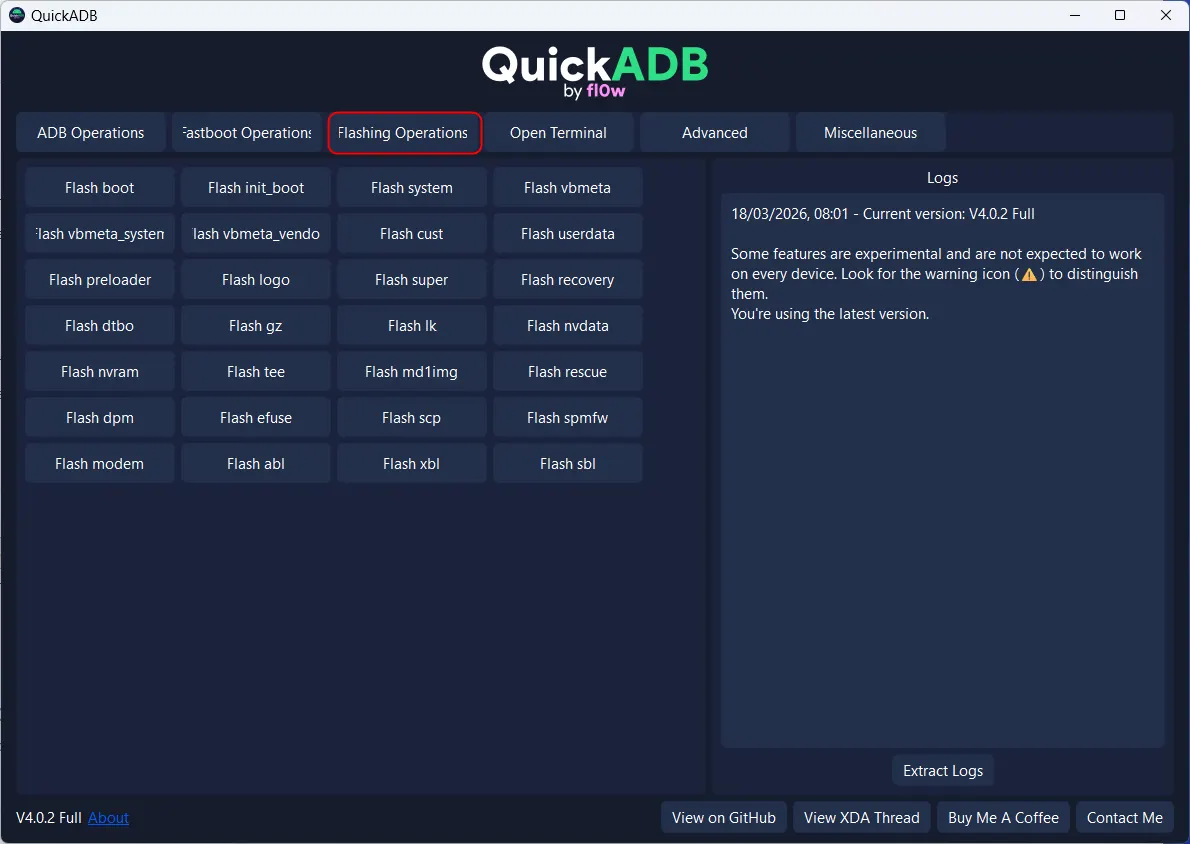
If you are into flashing system images on your Android device, QuickADB offers 24 options to meet your flashing needs.
- Flash Boot
- Flash init_boot
- Flash System
- Flash Vbmeta
- Flash Vbmeta_system
- Flash Vbmeta_vendor
- Flash Cust
- Flash Userdata
- Flash Preloader
- Flash Logo
- Flash Super
- Flash Recovery
- Flash dtbo
- Flash gz
- Flash lk
- Flash nvdata
- Flash nvram
- Flash tee
- Flash md1img
- Flash rescue
- Flash dpm
- Flash efuse
- Flash scp
- Flash spmfw
- Flas sbl
- Flash xbl
- Flas abl
- Flash modem
4. Open Terminal
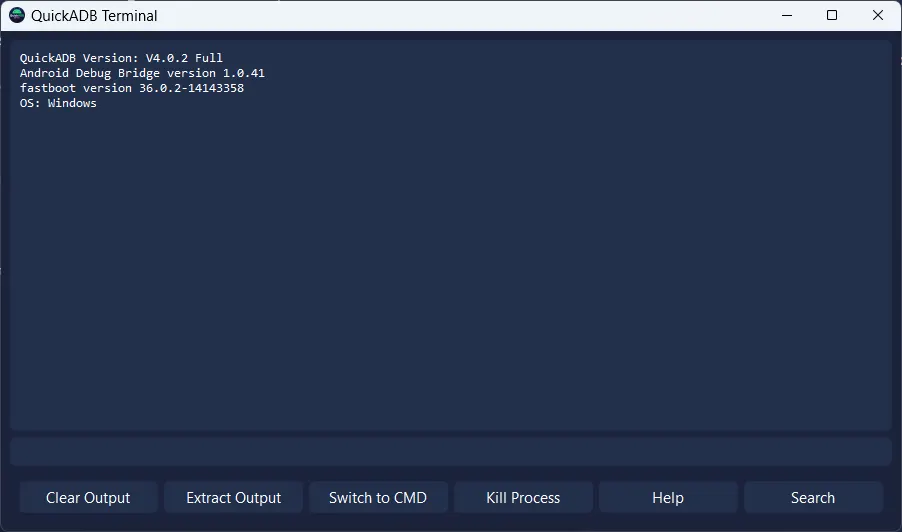
You do not need to download Android SDK Platform tools to use ADB and Fastboot commands if you have QuickADB. The tool has the SDK Platform Tools built in. Just click the Open Terminal tab to launch a command window from the same directory as the platform tools without adding the folder to your PATH.
5. Advanced
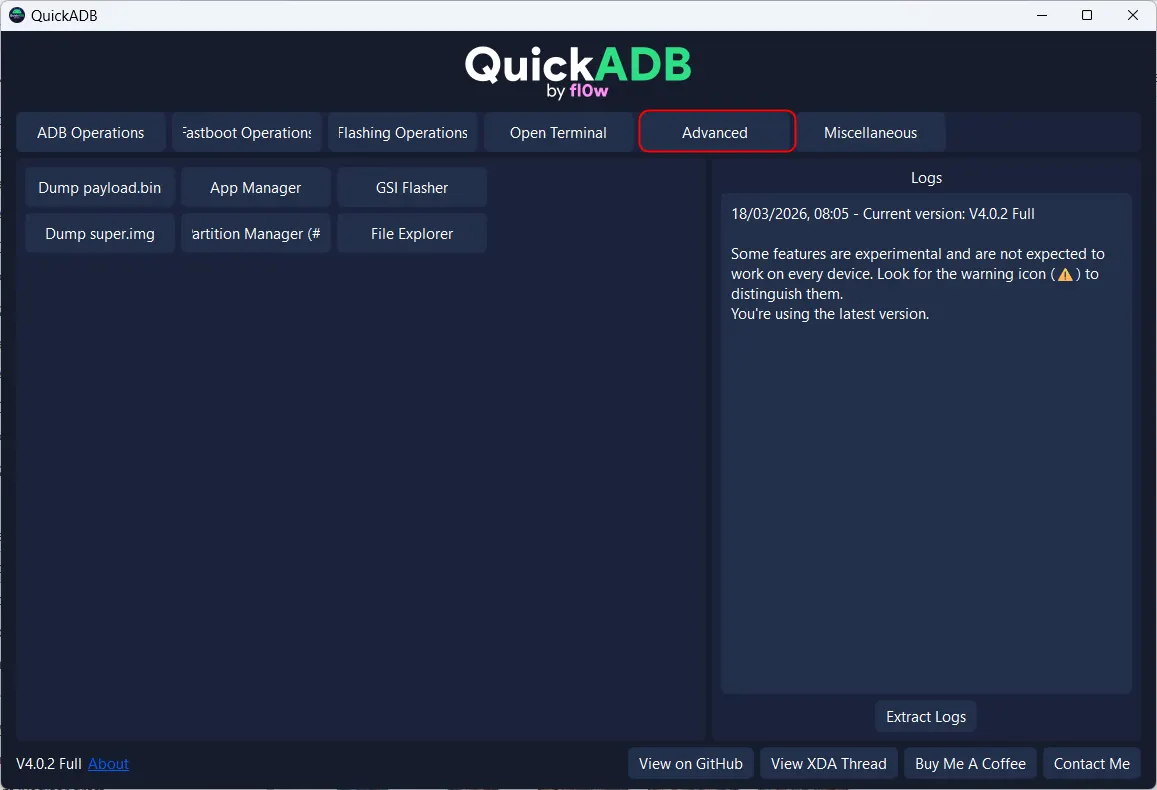
Whether you want to root your Android phone using Magisk, install the latest USB driver for your device, or uninstall bloatware, the Advanced tab has all those options.
- Dump payload.bin
- Dump super.img
- Get Device Info
- GSI (Google System Image) Flasher
- App Manager
- File Explorer
QuickADB is an easy-to-use tool because it has a GUI that lets users perform over 65 tasks without using an ADB or Fastboot command in the Terminal.
Source: GitHub