Samsung’s latest One UI 8.5 update has introduced a new security mechanism that prevents many Galaxy devices from entering Download Mode using the traditional key combination. Instead of the familiar warning screen, users are greeted with a D2 Error or D116 screen, leaving Odin unable to detect the device.
Fortunately, the Android community has discovered two reliable methods to bypass this restriction. In this guide, we’ll explain what the D2 error is and show you two proven ways to access Download Mode on One UI 8.5.
What is the Samsung D2 Error?
After installing recent One UI 8.5 firmware, many Samsung users have noticed that attempting to enter Download Mode results in a blue screen displaying:
- Reboot Device
- D2
- D116 (on some devices)
This prevents access to Odin Mode, making it impossible to flash official firmware, recover soft-bricked devices, or perform advanced maintenance. Samsung appears to have implemented this as an additional security measure to restrict unauthorized firmware flashing.
Earlier, we covered six methods for entering Download Mode on Samsung phones. This guide expands on that tutorial by focusing specifically on the D2 and D116 errors, explaining what they mean and how to bypass them when accessing Download Mode.
Method 1: Remove Your Screen Lock (Original Workaround)
The first workaround involves temporarily removing your device’s lock screen credentials before attempting to enter Download Mode.
Steps
- Open Settings > Lock Screen and AOD > Screen Lock Type.
- Remove your PIN, password, or pattern.
- Disable fingerprint and face unlock if prompted.
- Power off your Galaxy phone.
- Press and hold Volume Up + Volume Down simultaneously.
- While holding both buttons, connect the phone to your PC using a USB cable.
- The device should boot directly into Download Mode.
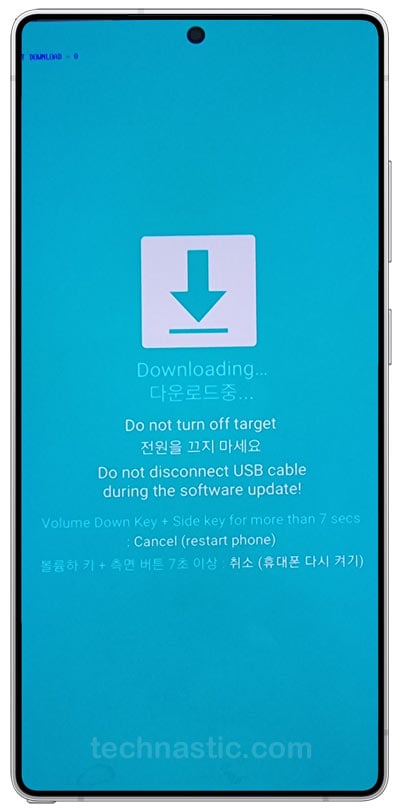
- Once you’re finished, reboot your phone and restore your preferred screen lock.
Note: Some users may also need to disable Samsung’s Auto Blocker feature before this method works.
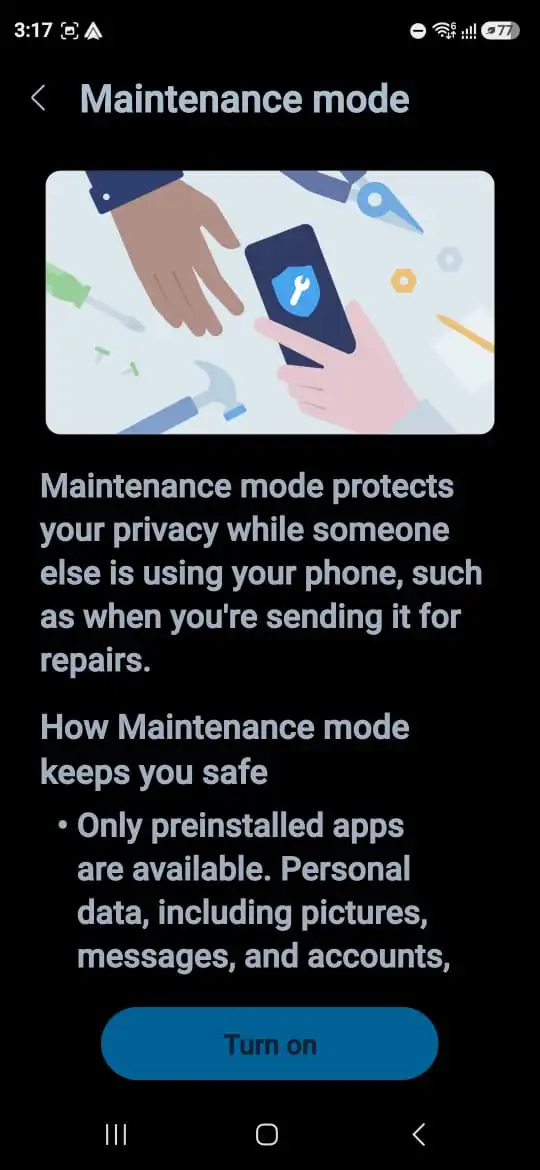
Method 2: Use Maintenance Mode (Recommended)
A much simpler solution has also been confirmed by several users. Instead of removing your lock screen—which can be inconvenient—you can temporarily enable Maintenance Mode.
This method preserves all your security settings and only takes a few minutes.
Steps
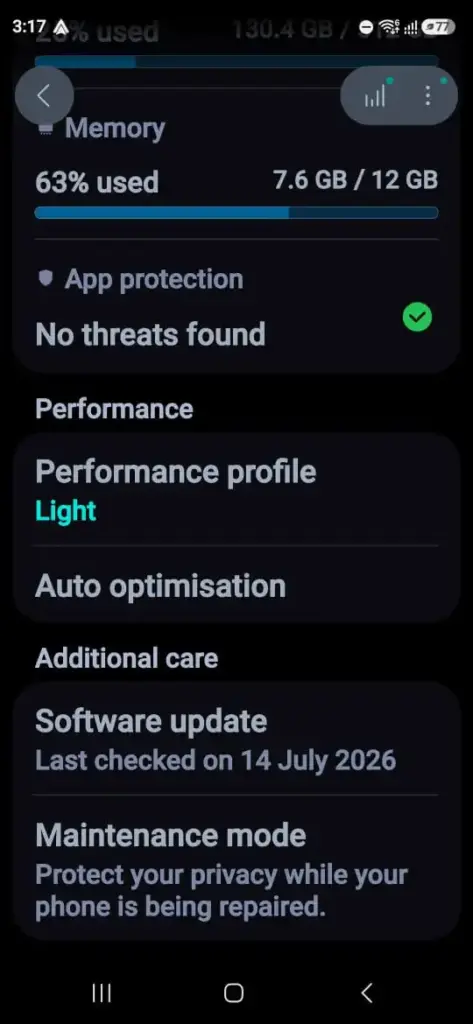
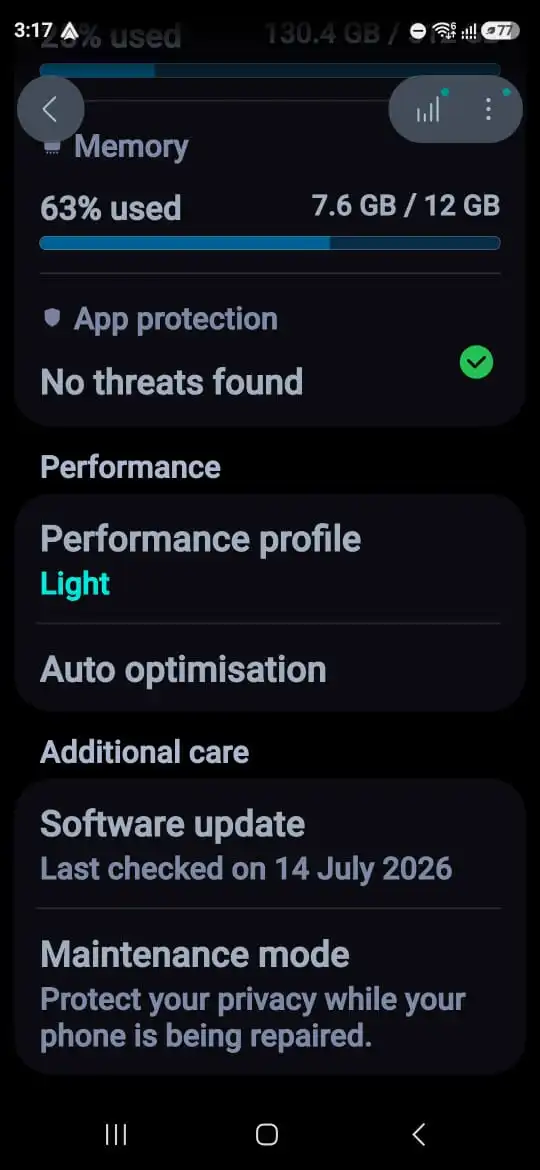
- Open Settings > Device Care > Maintenance Mode.
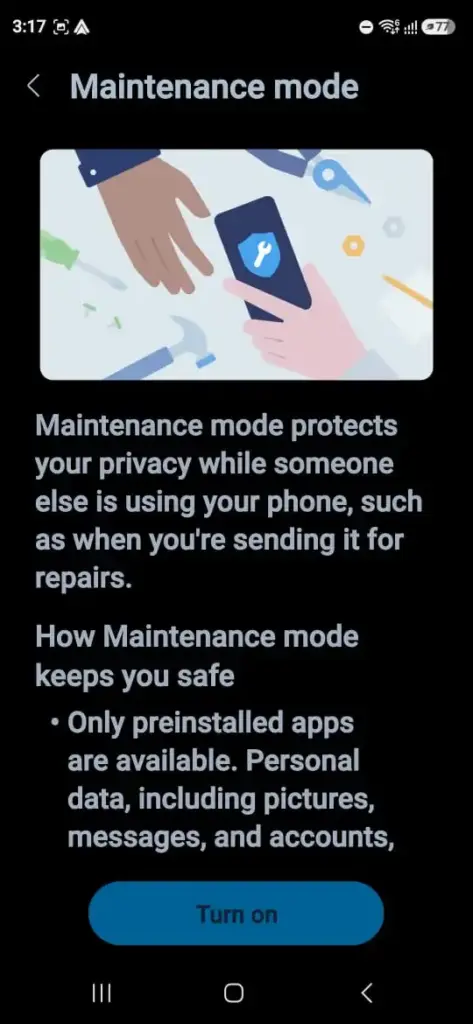
- Tap Turn On.
- Wait while the phone generates the maintenance log (usually around two minutes).
- The phone will reboot into Maintenance Mode.
- Power off the device.
- Press and hold Volume Up + Volume Down simultaneously.
- While holding both buttons, connect the phone to your PC using a USB cable.
- Your Galaxy device should boot directly into Download Mode.
- When finished, reboot the phone.
- The phone will return to Maintenance Mode.
- Open Settings and choose Turn Off Maintenance Mode.
- The device will reboot normally with all your original apps, accounts, and lock screen settings intact.
Why This Method Is Better
Compared to removing your lock screen, using Maintenance Mode offers several advantages:
- No need to delete your PIN, password, or pattern.
- Fingerprints and Face Unlock remain untouched.
- Faster and more convenient.
- Avoids reconfiguring your security settings afterward.
For most users, this is the easiest and safest way to regain access to Download Mode.
Now that you’ve already accessed Odin mode, learn how to exit Download Mode on Samsung devices.
Why Did Samsung Introduce the D2 Error?
Samsung hasn’t officially explained the change, but it likely serves several security purposes:
- Prevent unauthorized firmware flashing.
- Make bootloader exploits more difficult.
- Reduce firmware downgrades.
- Strengthen device protection against tampering.
While these changes improve security, they also affect enthusiasts, developers, repair technicians, and anyone who regularly uses Odin.
Does This Work on Every Samsung Device?
The workaround has been confirmed on numerous Galaxy devices running recent One UI 8.5 firmware. However, results may vary depending on:
- Device model
- Region
- Security patch level
- Carrier firmware
Samsung may also modify the behavior in future software updates.
Frequently Asked Questions
Will this erase my data?
No. Neither method wipes your personal data.
Does Maintenance Mode factory reset the phone?
No. Maintenance Mode creates a temporary environment for device servicing. When you disable it, your phone returns to its normal state with all your data intact.
Is Download Mode the same as Recovery Mode?
No. Download Mode is primarily used to flash firmware via Odin, while Recovery Mode is intended for system maintenance tasks such as factory resets and cache wiping.
Will Samsung patch these workarounds?
Possibly. Since these methods rely on current One UI 8.5 behavior, Samsung could change or remove them in future updates.
Samsung’s new D2 error has made entering Download Mode more difficult than before, but it isn’t impossible. If you don’t mind temporarily removing your lock screen, the original workaround remains effective. However, the Maintenance Mode method is the better option since it preserves your security settings while allowing quick access to Download Mode.
As Samsung continues tightening Android security, it’s a good idea to stay updated on new firmware changes if you frequently use Odin or perform manual firmware flashing.