Samsung introduced a redesigned battery indicator in One UI, displaying the battery percentage inside a pill-shaped background on the status bar. While this design offers a modern look, it may not appeal to everyone. The pill-shaped background also causes visibility issues, making the battery percentage less distinct at a glance, especially when you prefer a clean, clutter-free status bar.
Fortunately, you don’t have to live with this design. Samsung provides a built-in option to remove the pill-shaped battery background while keeping the battery percentage visible. In this guide, I’ll show you how to disable it on supported Samsung Galaxy devices running One UI 8.5 or later.
Steps to Remove the Battery Pill on Samsung One UI
Samsung lets you remove the battery background without disabling the battery percentage. Here’s how to change the battery indicator on your Galaxy device.
- Open the Settings app on your Samsung Galaxy phone.
- Tap Notifications.
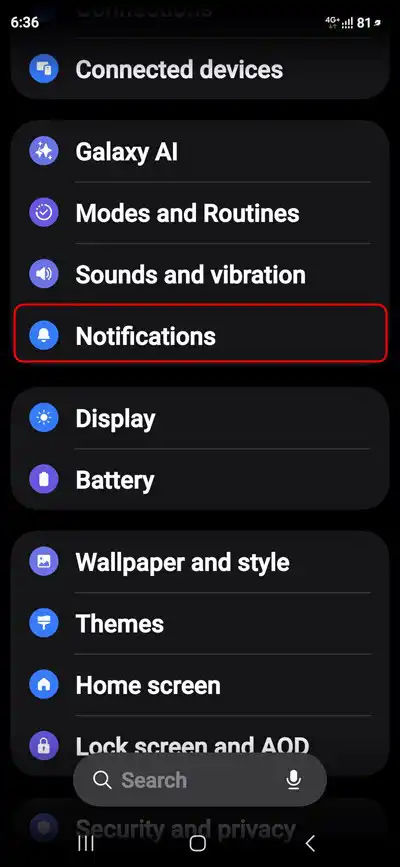
- Select Status bar.
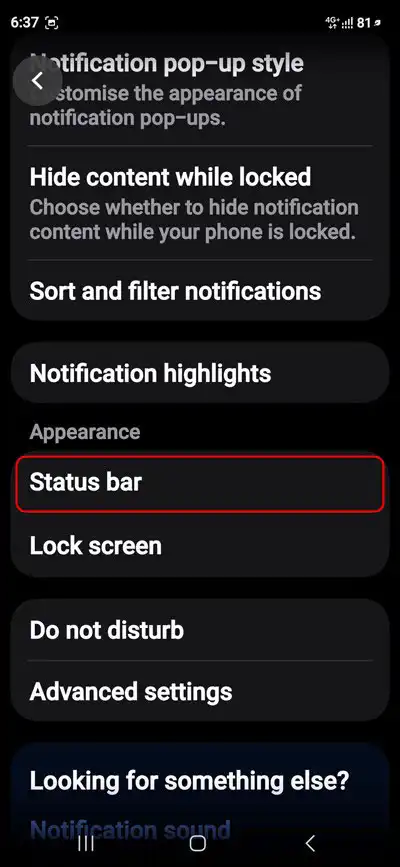
- Turn off the toggle next to Show battery background.
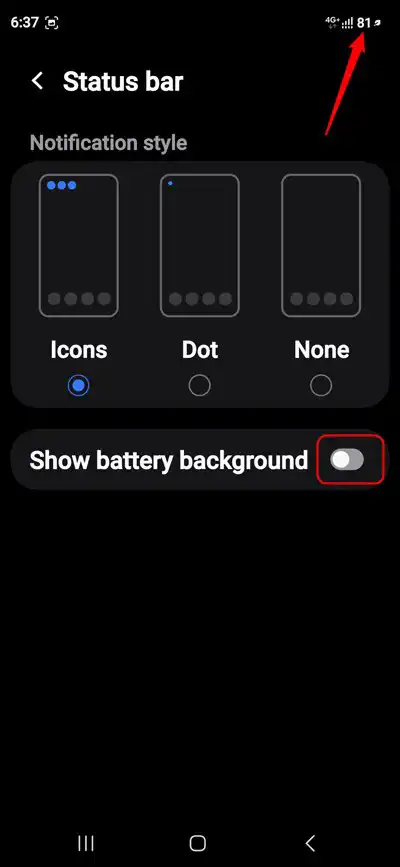
That’s it! The pill-shaped battery background will disappear from the status bar, leaving the battery percentage visible without the surrounding shape.
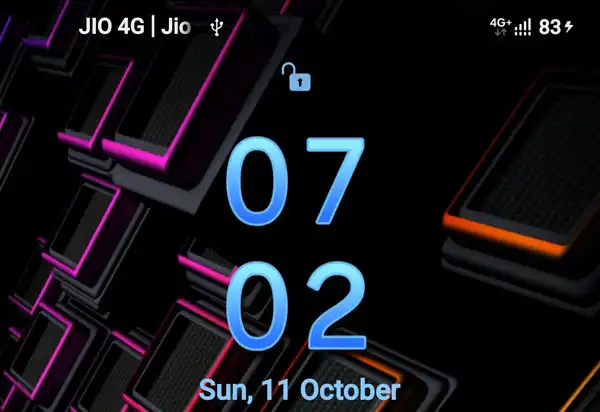
Note: The Show battery background option is available on supported software versions, including One UI 8.5. If you cannot find it on your Galaxy phone, check whether a software update is available. The setting’s availability and wording may vary by One UI version.
More Samsung One UI Tips and Tricks
Want to customize your Galaxy phone further? Check out these related guides on Technastic:
- 22 Effective Battery-Saving Tips for Samsung One UI 8
- One UI 8 Optimization Tips and Tricks – Ultimate Guide
These guides cover additional settings and tweaks to help you personalize your Samsung Galaxy device and improve its everyday performance.
Frequently Asked Questions
Can I remove the battery pill without hiding the percentage?
Yes. Turn off Show battery background under Settings > Notifications > Status bar. The percentage remains visible without the pill-shaped background on supported versions.
Does disabling the battery background save battery power?
No. This is a visual customization setting and does not meaningfully affect battery consumption.
Why can’t I find the Show battery background option?
The option depends on your device’s One UI version. It is documented in One UI 8.5, so the setting might not appear on devices running earlier versions. Check for available software updates.
Can I restore the pill-shaped battery indicator?
Yes. Return to Settings > Notifications > Status bar and turn on Show battery background again.