To use File Transfer mode on Samsung One UI 8 or 8.5, connect your Galaxy phone to a computer using a USB cable, swipe down the notification panel, tap the USB notification, and select Transferring files / File Transfer (MTP). Your phone’s internal storage will then appear on your computer in File Explorer or Android File Transfer.
In this tutorial, we’ll check the steps to use the file transfer mode on Samsung One UI 8 and above. Samsung’s One UI 8 and One UI 8.5 introduce several security changes, including how USB file transfers work. If you connect your Galaxy phone to a computer, it no longer automatically allows access to internal storage like earlier versions of One UI did. Instead, Samsung now sets the USB connection to Charging only by default. To transfer files between your phone and computer, you must manually switch the USB mode to File Transfer (MTP).
In this guide, you’ll learn how to enable File Transfer mode on One UI 8 and 8.5, as well as a hidden setting that lets you permanently enable file transfer so you don’t have to change it every time you connect your device.
Earlier versions of Android allowed computers to access a phone’s storage immediately after connecting via USB. However, this behavior could pose a security risk if someone plugged your phone into an unknown computer.
To improve security, Samsung now sets the default USB mode to Charging only. This means you must manually select File Transfer whenever you want to access your phone’s storage from a computer.
Using File Transfer Mode on One UI 8/8.5
Follow these steps to transfer files between your Samsung phone and your computer.
- Connect your Galaxy phone to your computer using a USB cable and unlock your phone’s screen. If the phone remains locked, your computer may not detect the storage or may display empty folders.
- Once your phone is connected, you need to change the USB mode.
-
- Swipe down from the top of the screen to open the notification panel
- Tap the notification that says Charging this device via USB or USB for charging
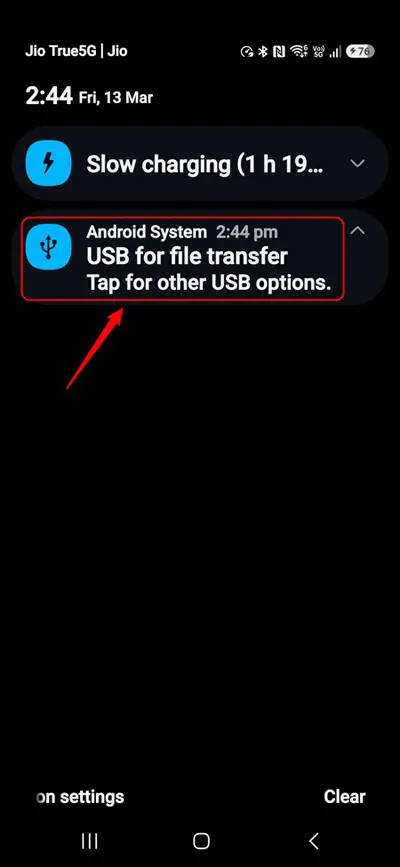
- Select Transferring files / Android Auto
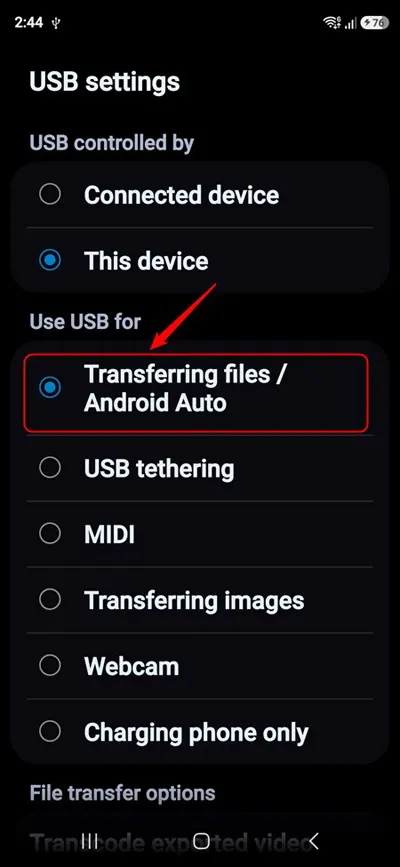
After selecting this option, your computer will detect the phone as a media device.
On Windows, open File Explorer → This PC and locate your Galaxy device. You can then browse folders like:
- DCIM
- Pictures
- Movies
- Downloads
Simply drag and drop files between your computer and phone.
Enabling File Transfer Mode Permanently
If you frequently connect your phone to a computer, switching USB mode every time can be annoying. Fortunately, Samsung provides a hidden option in Developer Options that allows you to set File Transfer as the default USB mode.
Step 1: Enable Developer Options
- Open Settings
- Go to About phone → Software information
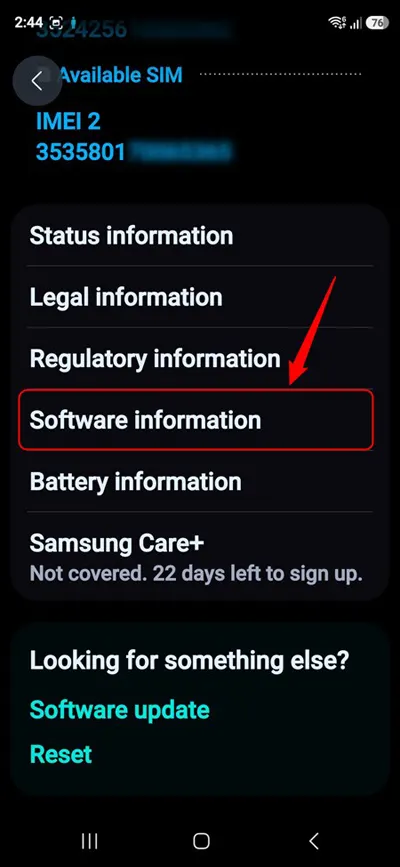
- Tap Build number seven times
- Enter your device PIN when prompted
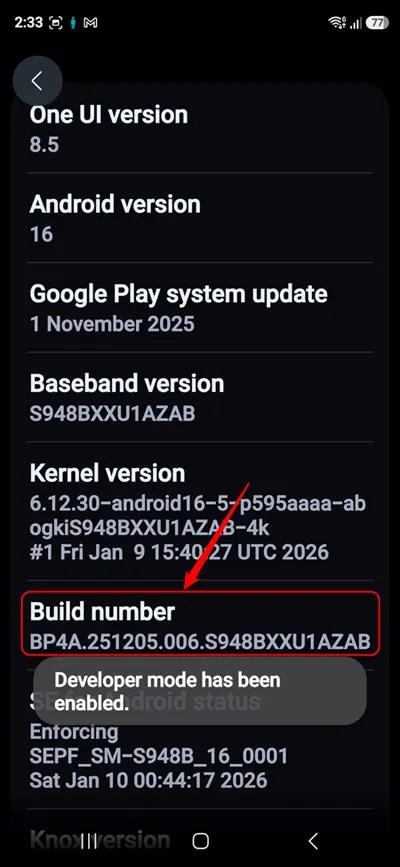
You will see a message saying Developer mode has been enabled.
Step 2: Set Default USB Configuration
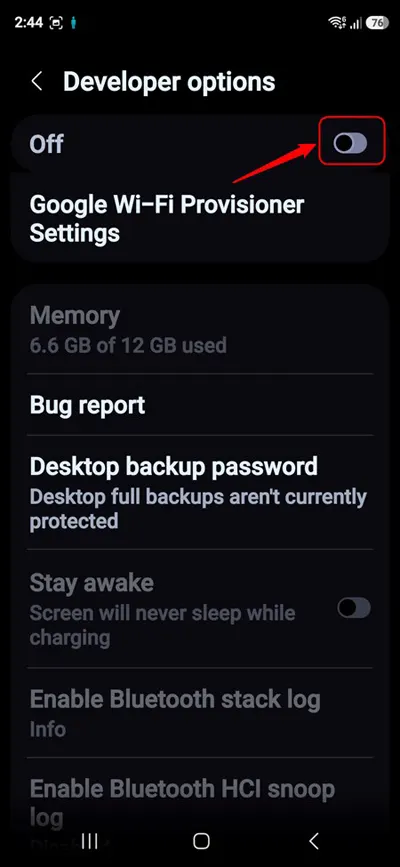
- Go to Settings → Developer options
- Scroll down and tap Default USB configuration
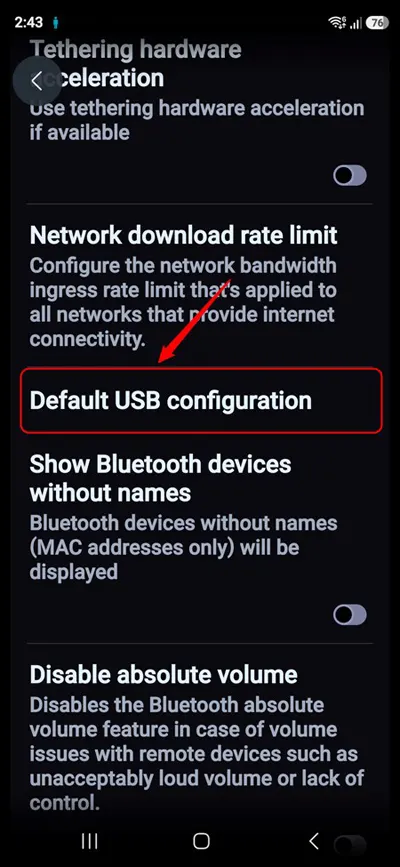
- Select Transferring files
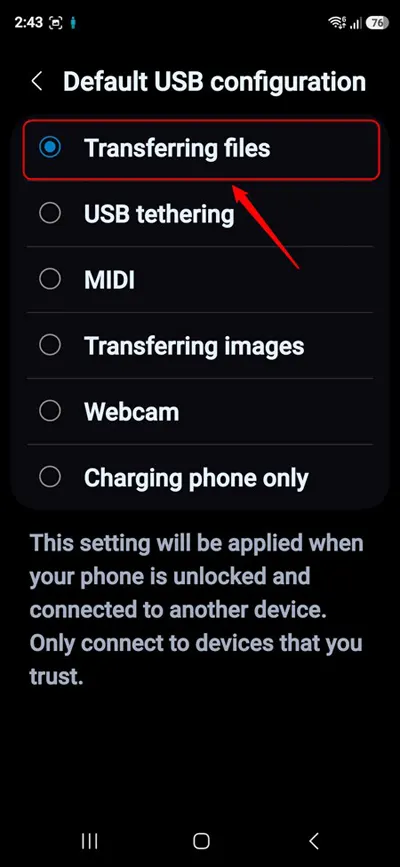
Now your phone will automatically connect in File Transfer mode whenever you plug it into a computer.
Interestingly, this setting remains active even if you later disable Developer options.
Frequently Asked Questions (FAQ)
Why can’t I transfer files from my Samsung phone running One UI 8?
Samsung devices running One UI 8 connect in Charging only mode by default for security reasons. To transfer files, swipe down the notification panel, tap the USB notification, and select Transferring files / File Transfer (MTP).
Where is the File Transfer option in One UI 8?
After connecting your phone to a computer with a USB cable, swipe down the notification panel and tap the message that says Charging this device via USB. Then choose Transferring files to access your phone’s storage on the computer.
How do I enable File Transfer mode by default on Samsung?
You can make file transfer the default USB mode using Developer Options. Go to Settings → About phone → Software information and tap Build number seven times to enable Developer Options. Then go to Settings → Developer options → Default USB configuration and select Transferring files.
Why does my computer show empty folders when I connect my phone?
This usually happens if your phone screen is locked or the USB mode is set to charging only. Unlock the phone and switch the USB connection to File Transfer from the notification panel.
Does File Transfer mode work on both Windows and Mac?
Yes. On Windows, your phone appears in File Explorer under “This PC.” On macOS, you may need to use tools like Android File Transfer or other compatible file management apps to access the device storage.
Can I transfer files wirelessly instead of using USB?
Yes. Samsung phones support wireless file transfer using apps such as Quick Share, cloud storage services, or third-party file transfer apps. However, USB file transfer is usually faster for large files like videos.